
SS IPTV
Updated: July 28, 2026
Installation
SS IPTV is a free IPTV player for Smart TVs. It supports M3U playlists, an electronic program guide (EPG), catch-up TV, and provides a simple, user-friendly interface.
Installing the Player:
LG Smart TV:
SS IPTV is available from the official LG Smart World app store on all LG TVs, regardless of your country:
- Open the app store on your TV.
- Search for "SS IPTV."
- Install the application.
- Launch it after installation.
Samsung Smart TV:
The application is not available in the Smart Hub app store.
Instead, you can run SS IPTV from a USB drive connected to your TV. This method is supported only on selected Samsung Smart TV models manufactured between 2011 and 2019.
A complete list of supported Samsung Smart TV models is available on the official SS IPTV website under the "Samsung Smart TV" section.
Running on Non-Tizen TVs (2011–2015):
- Download the ssiptv_orsay_usb.zip archive.
- Extract its contents to the root directory of a USB flash drive.
- Insert the USB drive into one of your TV's USB ports.
- Open the USB drive using the TV's file browser and launch the application.
Running on Tizen TVs (2015–2019):
- Download the ssiptv_tizen_usb.zip archive.
- Extract its contents to the root directory of a USB flash drive.
- Insert the USB drive into one of your TV's USB ports.
Note:
The folder structure is important. Make sure you extract the archive directly to the root of the USB drive.
For example, if your USB drive is assigned the drive letter "D:" in Windows:
- Non-Tizen: "D:\ssiptv\"
- Tizen: "D:\userwidget\"
Hisense Smart TV:
On VIDAA TVs, SS IPTV can be installed from the official App store:
- Open the app store on your TV.
- Search for "SS IPTV".
- Install the application.
- Launch it after installation.
Adding a Playlist
SS IPTV supports two methods of adding playlists:
Method 1: Using a Direct Link:
- Open SS IPTV.
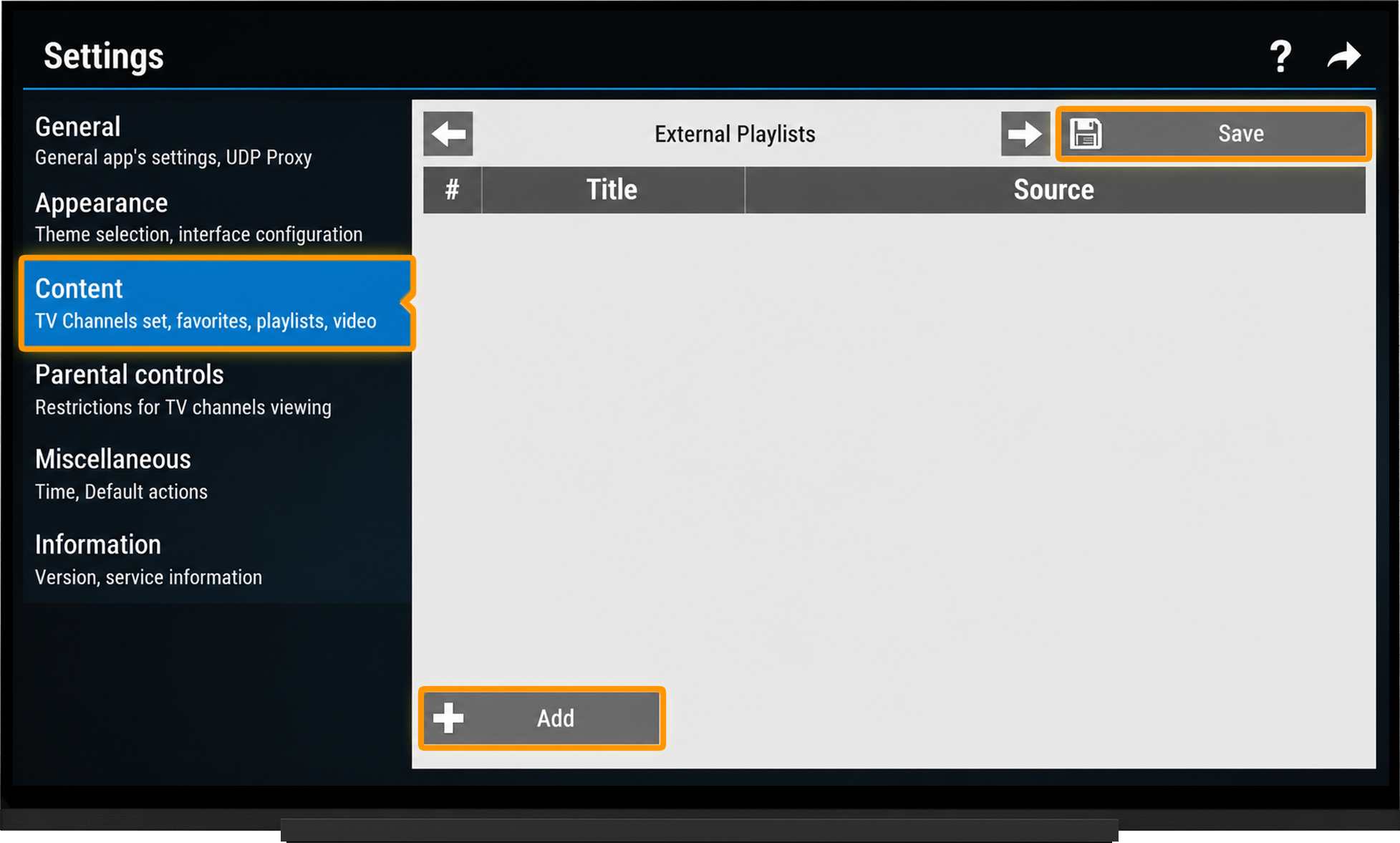
- Go to Settings (the "gear" icon in the upper-right corner).
- Open Content - External Playlists.
- Select "Add".
- Enter:
- any playlist name;
- the playlist link from your account. - Save the changes.
- Return to the main screen.
- Open the playlist you added.
- Wait for the playlist to finish loading.
Method 2: Using a Connection Code:
- Launch SS IPTV.
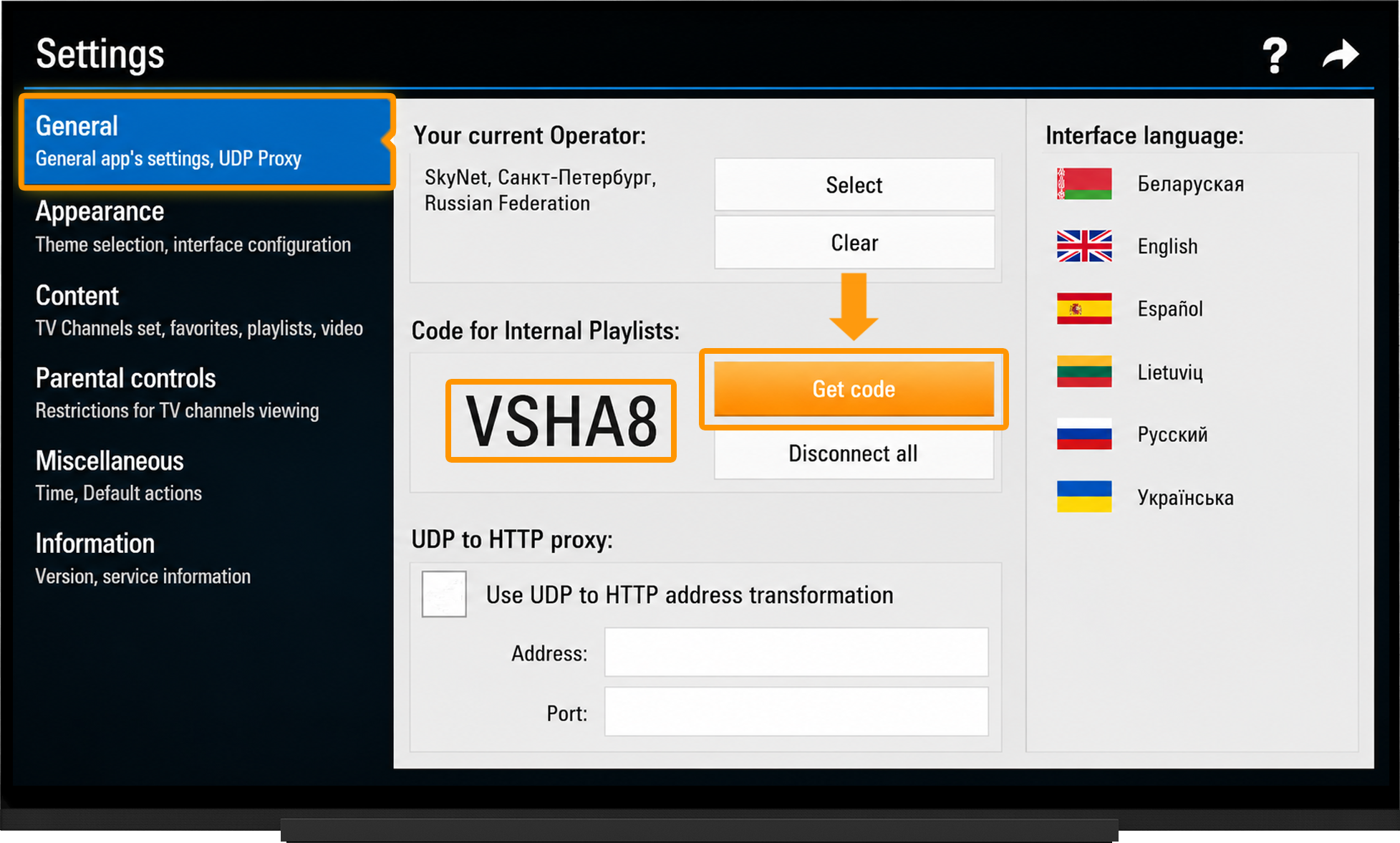
- Open Settings (the "gear" icon in the upper-right corner).
- Go to the General section.
- Click "Get Code".
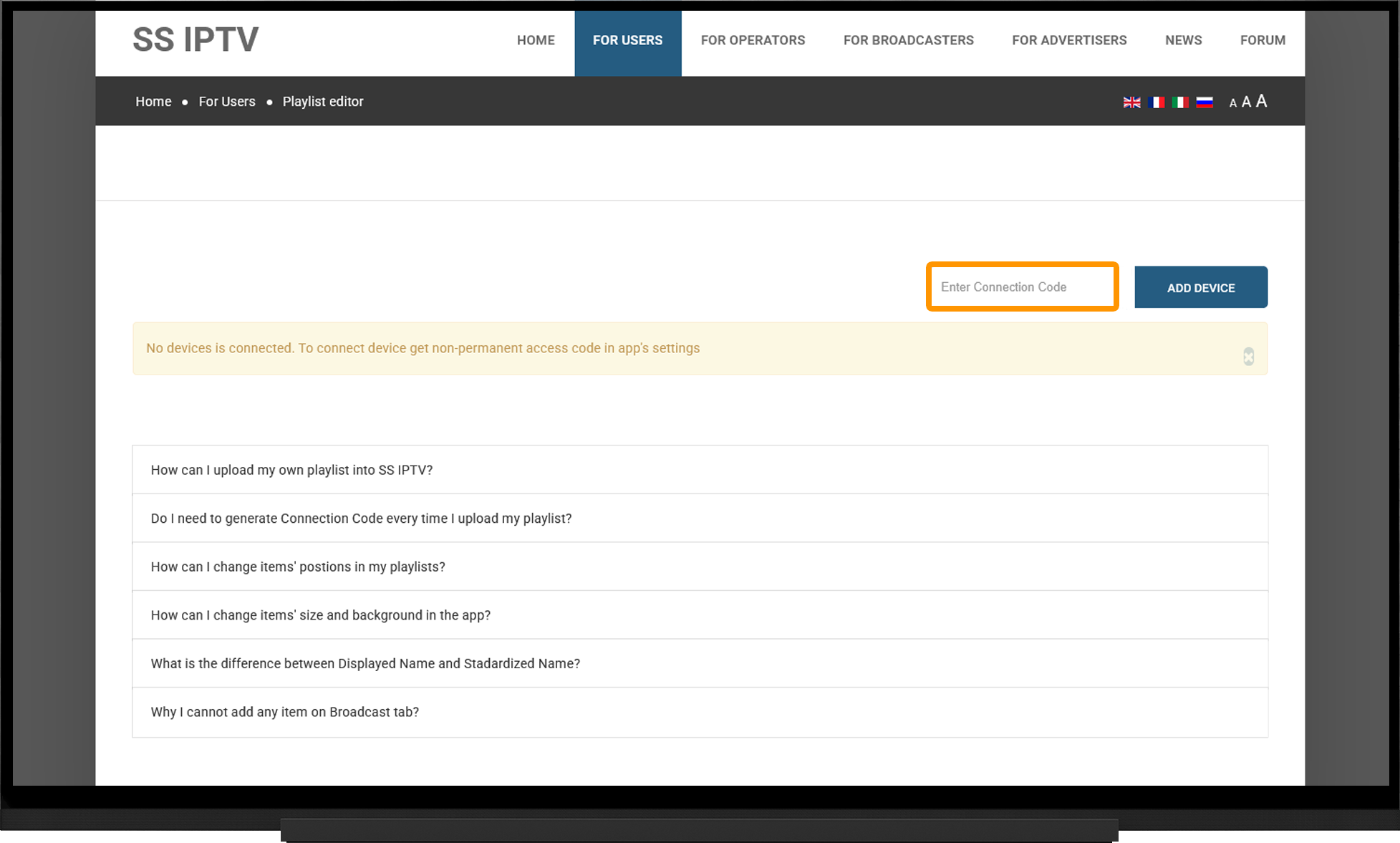
- Open the Playlist Editor on the official SS IPTV website.
- Enter the connection code you received and add your device.
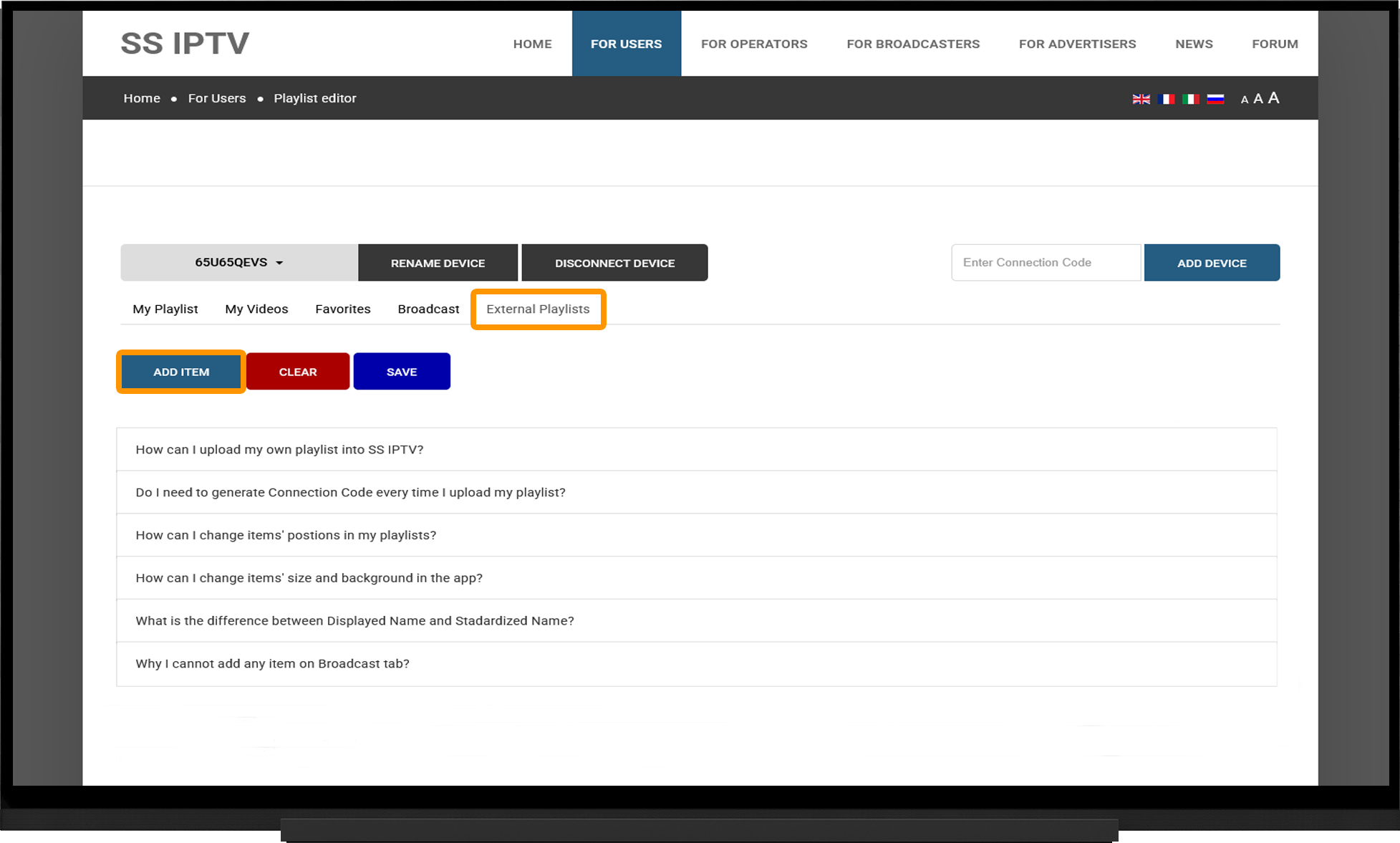
After your TV has been added:
- Switch to the External Playlists tab.
- Click "Add Item".
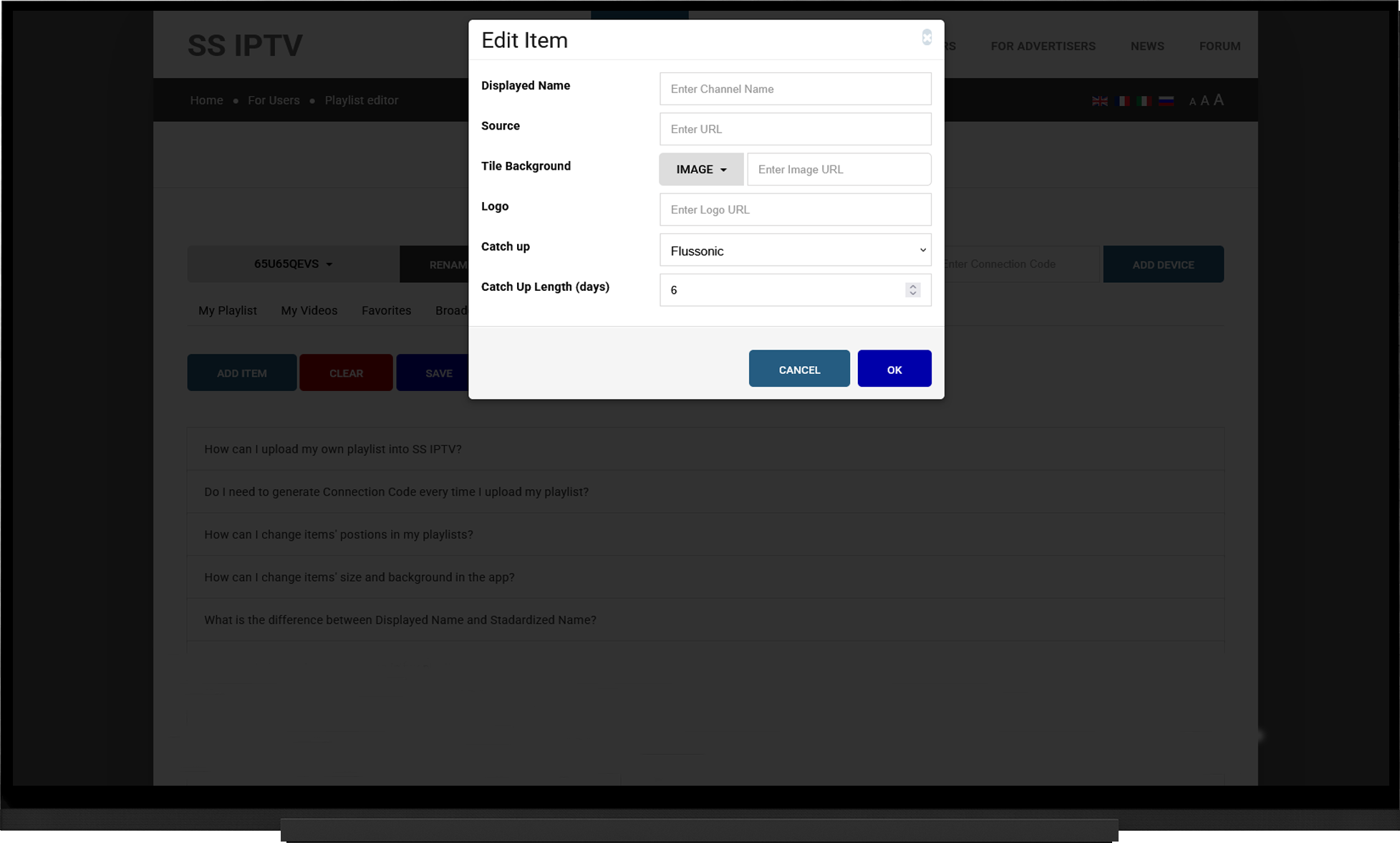
In the dialog that opens:
- Displayed Name - enter any playlist name (for example, "IPTV").
- Source - paste the playlist link for SS IPTV.
- Click OK.
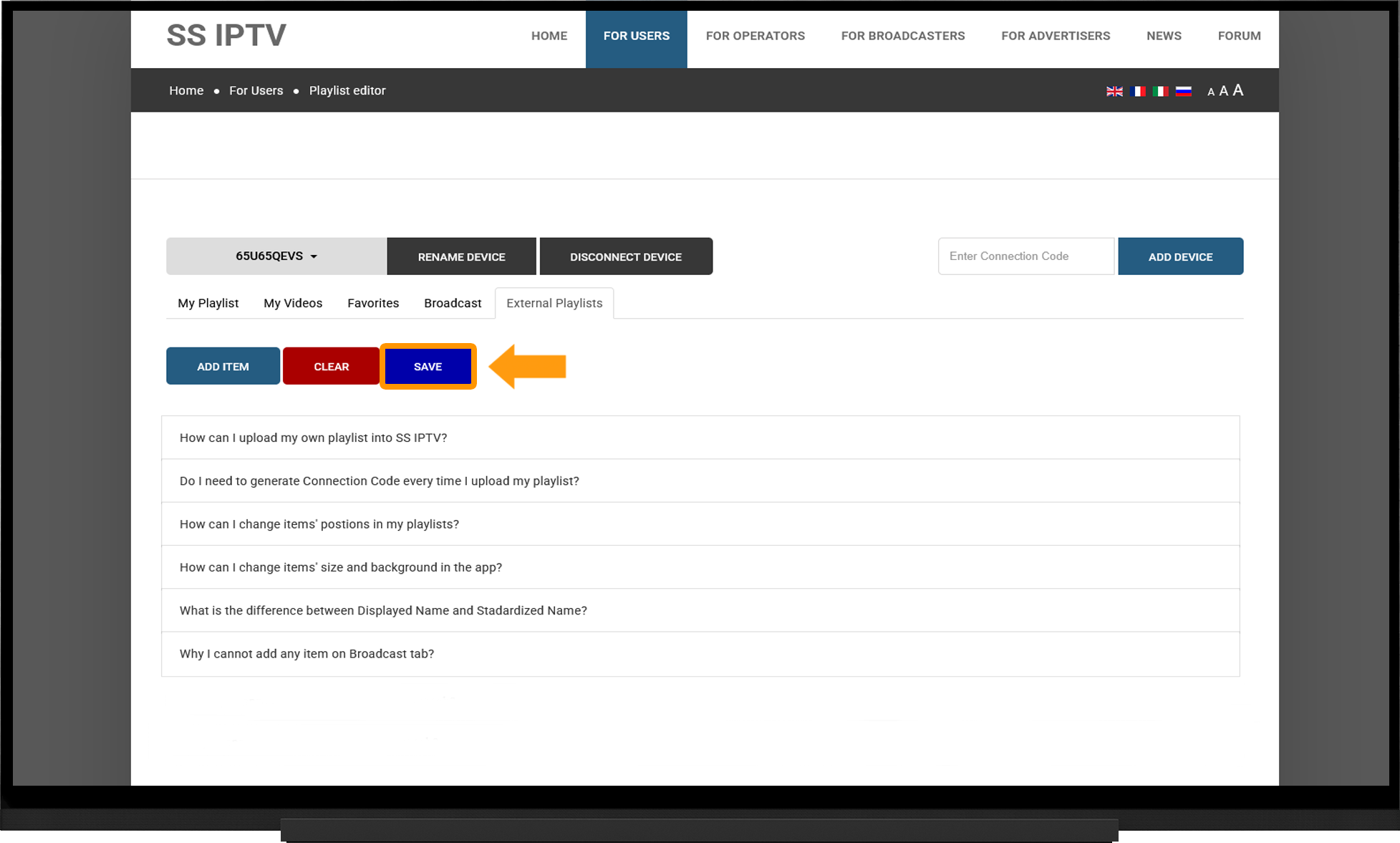
- Be sure to save your changes by clicking the Save button.
- After a few minutes, restart the application on your TV.
Note:
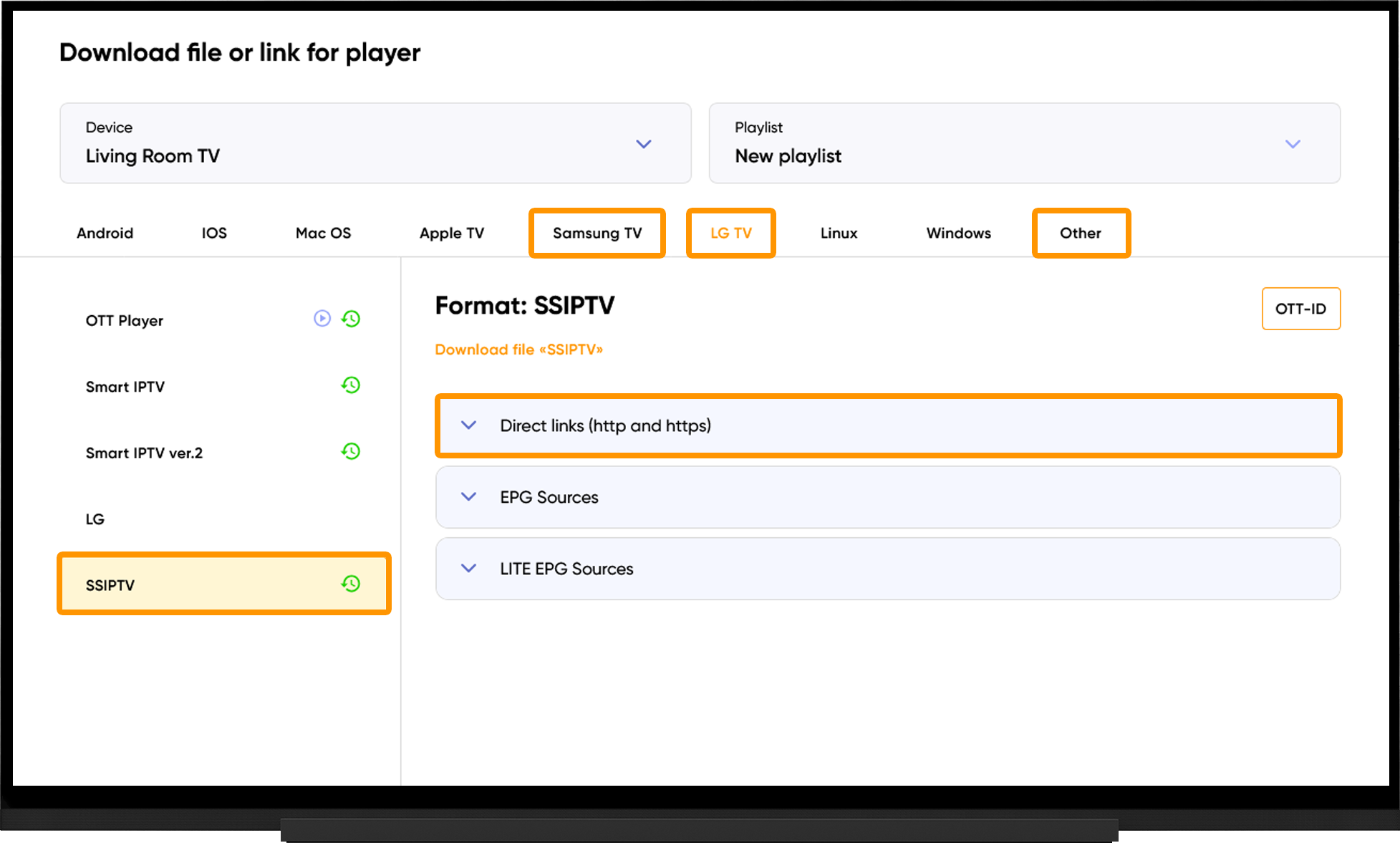
To get your playlist link, go to the My Devices section and click "Download" next to your device:
- Select your device type.
- Choose SS IPTV.
- Under "Direct Links (http and https)", copy the playlist link.
Catch-up TV
In SS IPTV, Catch-up TV is enabled through special attributes embedded in the M3U playlist. The player itself does not have separate Catch-up settings—it is activated automatically when the playlist contains the required parameters.
For this reason, it is important to use the playlist specifically generated for SS IPTV.
If you add the playlist using a direct link in the player, Catch-up TV will be available automatically without any additional configuration.
If you are configuring SS IPTV using a connection code, open the Playlist Editor on the official SS IPTV website and follow these steps:
- Enter your player code and add your device.
- Switch to the External Playlists tab.
- Click Add Item.
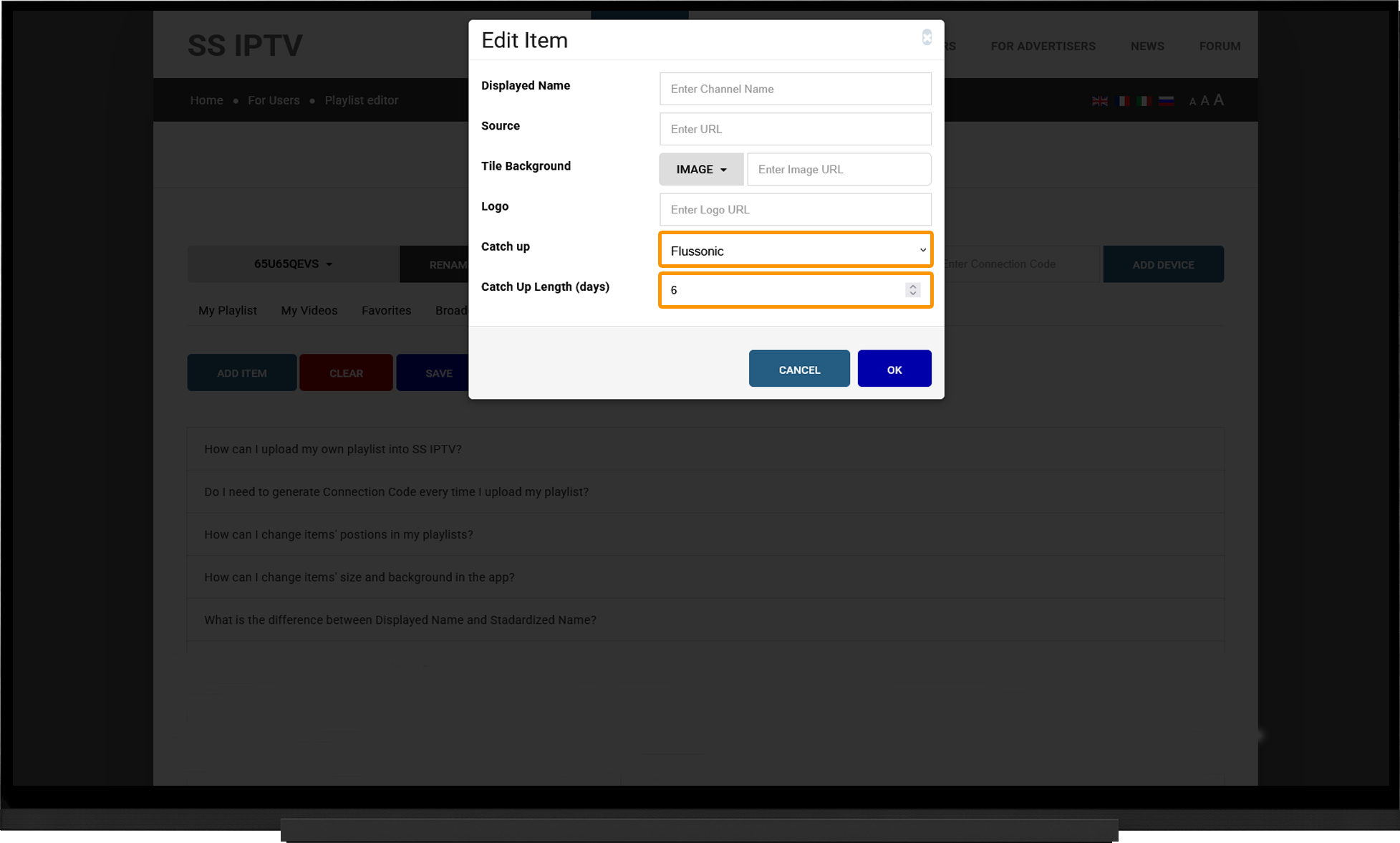
- Displayed Name - enter any playlist name (for example, "IPTV").
- Source - paste the playlist link for SS IPTV.
- Catch-up - select "Flussonic"
- Catch-up Duration (Days) - set it to "6".
- Click OK.
- Save your changes by clicking the "Save" button.
- Wait a few minutes, then restart the application on your TV.
Frequently asked questions
Common Issues and Solutions
Playlist Won't Load:
- Make sure the playlist link is correct. Links are case-sensitive.
- Try using both HTTP and HTTPS playlist links.
- Run the server selection tool, switch to the recommended server, and restart the application after 10 minutes.
Video Buffering:
- Run the server selection tool, switch to the recommended server, and restart the application after 10 minutes.
No Audio or Video:
- This usually means that your TV does not support the required video codec or codec profile. Check your TV's user manual to verify support for the codec and profile being used.
- Try power-cycling your TV by unplugging it from the power outlet for a few minutes, then turning it back on.
Blank (Black or White) Screen When Launching the App:
- Make sure your device has a stable Internet connection.
- Try opening the official SS IPTV website in your TV's web browser. If the website is unavailable, configure one of the following DNS servers in your TV's network settings:
8.8.8.8, 8.8.4.4, 1.1.1.1
The Player Asks for a PIN When Opening Channels:
- The default PIN is 12345.
- If you changed the PIN and have forgotten it, send a photo of the SS IPTV Settings Information screen to [email protected] with the subject "I forgot my PIN".