
Smart IPTV
Updated: July 27, 2026
Installation
Smart IPTV is a paid IPTV player primarily designed for Samsung and LG Smart TVs, with support for Android TV, Google TV, and Fire TV devices.
The main advantages of Smart IPTV are stable performance, a simple interface, and convenient remote control navigation.
The player supports: M3U playlists (direct links and files); TV guide (EPG) from built-in and external XMLTV sources; Catch-up TV / archive playback.
Playlist management is performed through the developer's website, allowing you to update playlists easily without configuring the application again.
Activation is available after a one-time payment of €5.49 per TV or device. A 7-day trial period is available. Payment must be made on the official Smart IPTV website.
Samsung Smart TV (Tizen):
- Open Apps (Smart Hub).
- Search for Smart IPTV.
- Install the application.
LG Smart TV (webOS):
- Open LG Content Store.
- Search for Smart IPTV.
- Install the application.
Note: If the application is not available in the store, this may be related to the region settings of your TV. In this case, we recommend using an alternative IPTV player or changing the app store region (if supported by your device).
Android TV / Google TV:
- Open the Google Play Store on your device.
- Search for the Smart IPTV application.
- Install the player.
If Google Play indicates that the application is not compatible with your device, it means your device is not running Android TV.
Adding a Playlist
In Smart IPTV, playlists are added through the developer's website using the playlist upload page.
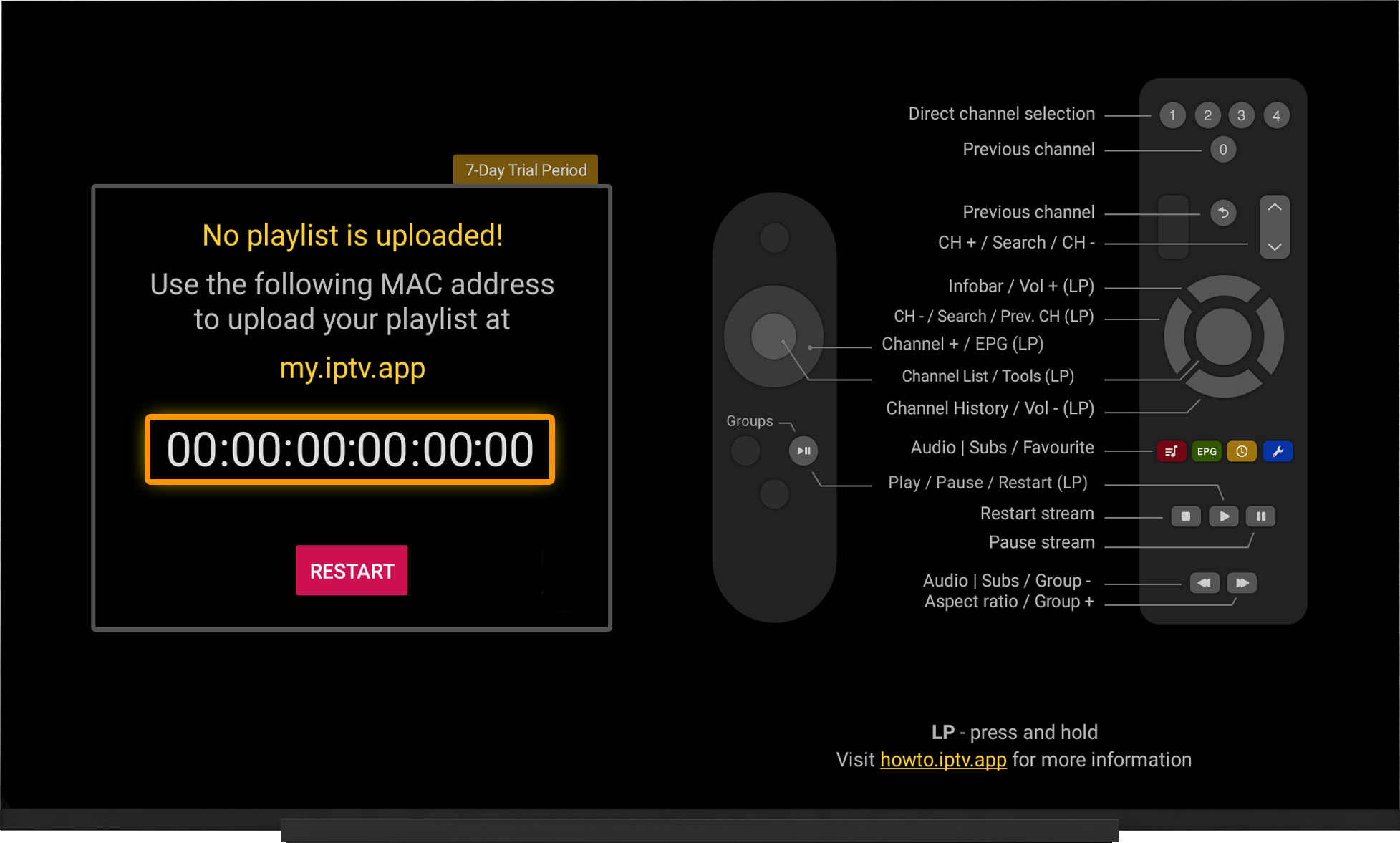
The playlist is linked to the device's MAC address or Device ID, which are displayed when the application starts.
- Launch Smart IPTV on your TV.
- On the app's main screen, note the MAC address or Device ID.
- Most Samsung devices display the MAC address.
- LG webOS TVs (from app version 3.0.0) display the Device ID. However, TVs that were previously activated using a MAC address can continue using the MAC address when uploading playlists.
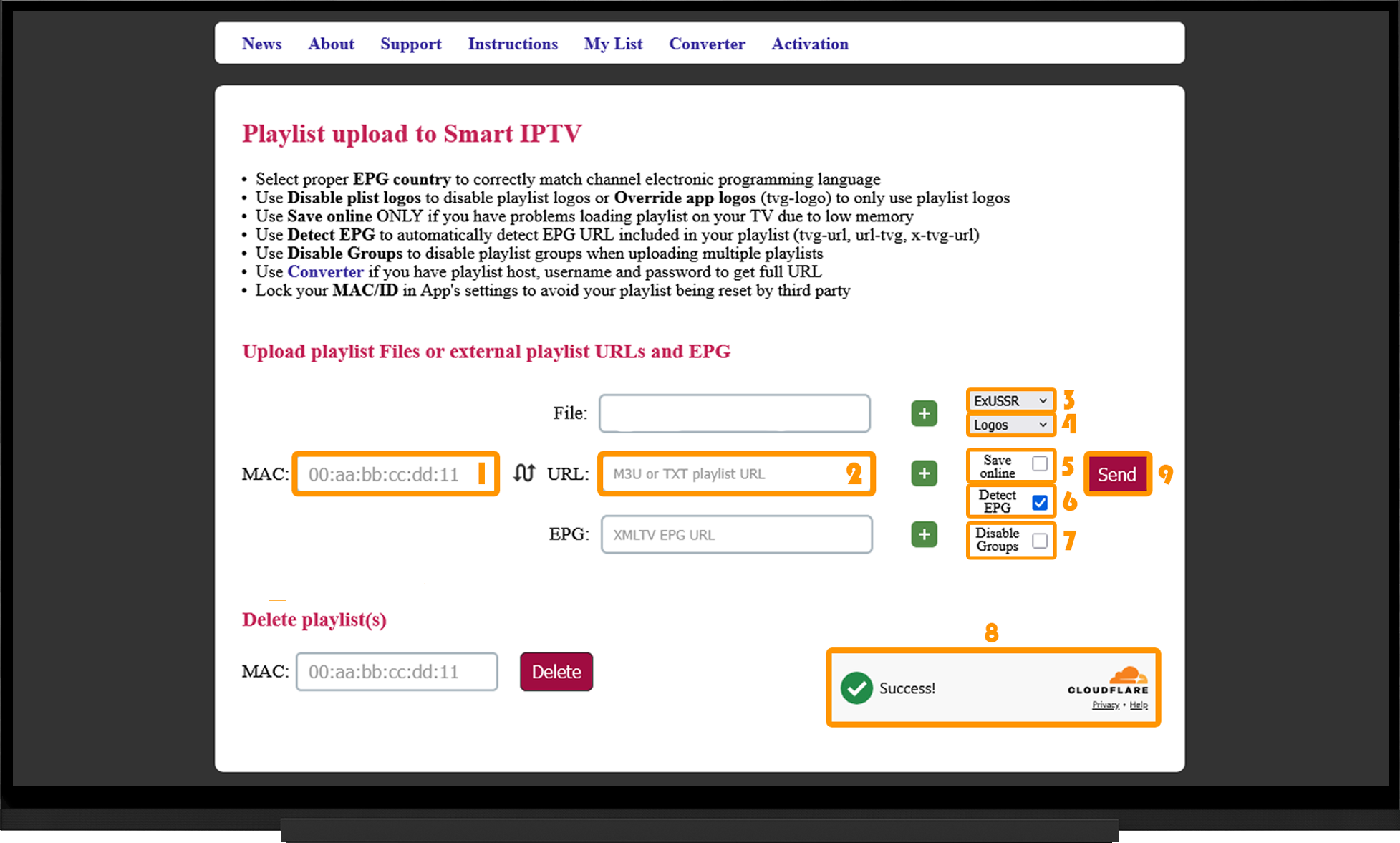
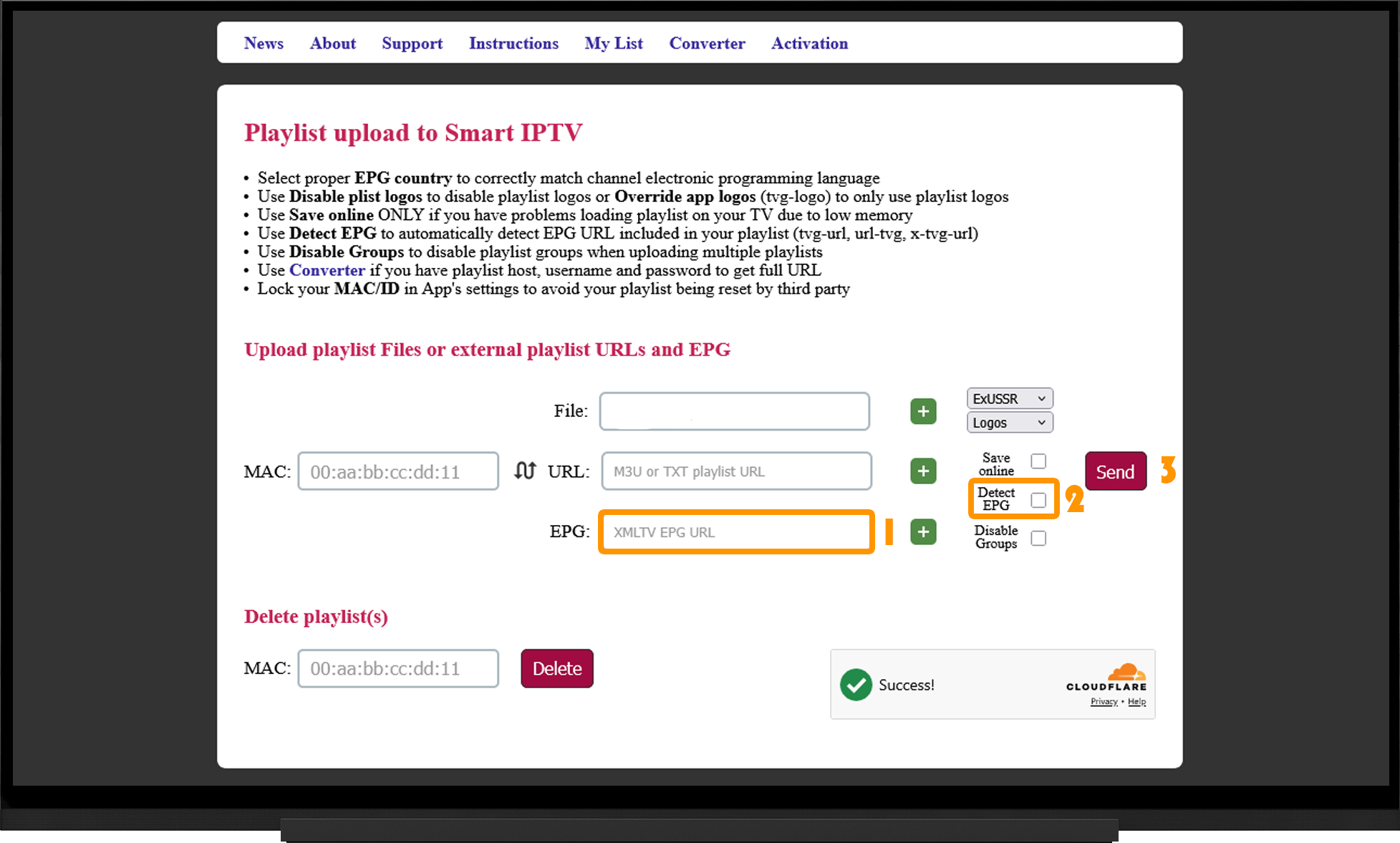
Open the Smart IPTV playlist upload page in a browser on any device (PC, smartphone, etc.):
- In the MAC/ID field, enter the device MAC address or Device ID.
- In the URL field, paste the direct Smart IPTV playlist link.
- In EPG Region, select ExUSSR to ensure correct display of Cyrillic characters in the TV guide.
- Select Logos.
- Use the "Save online" option only if you experience playlist loading issues caused by limited device memory.
- Enable "Detect EPG" so the application can automatically detect the EPG source (when using a compatible Smart IPTV playlist).
- Disable Groups - when enabled, channels will be displayed as one list without separate categories.
- Complete the CAPTCHA verification.
- Click Send.
After the playlist has been successfully uploaded, completely close the Smart IPTV application and launch it again. Within a few seconds, the channel list will load automatically.
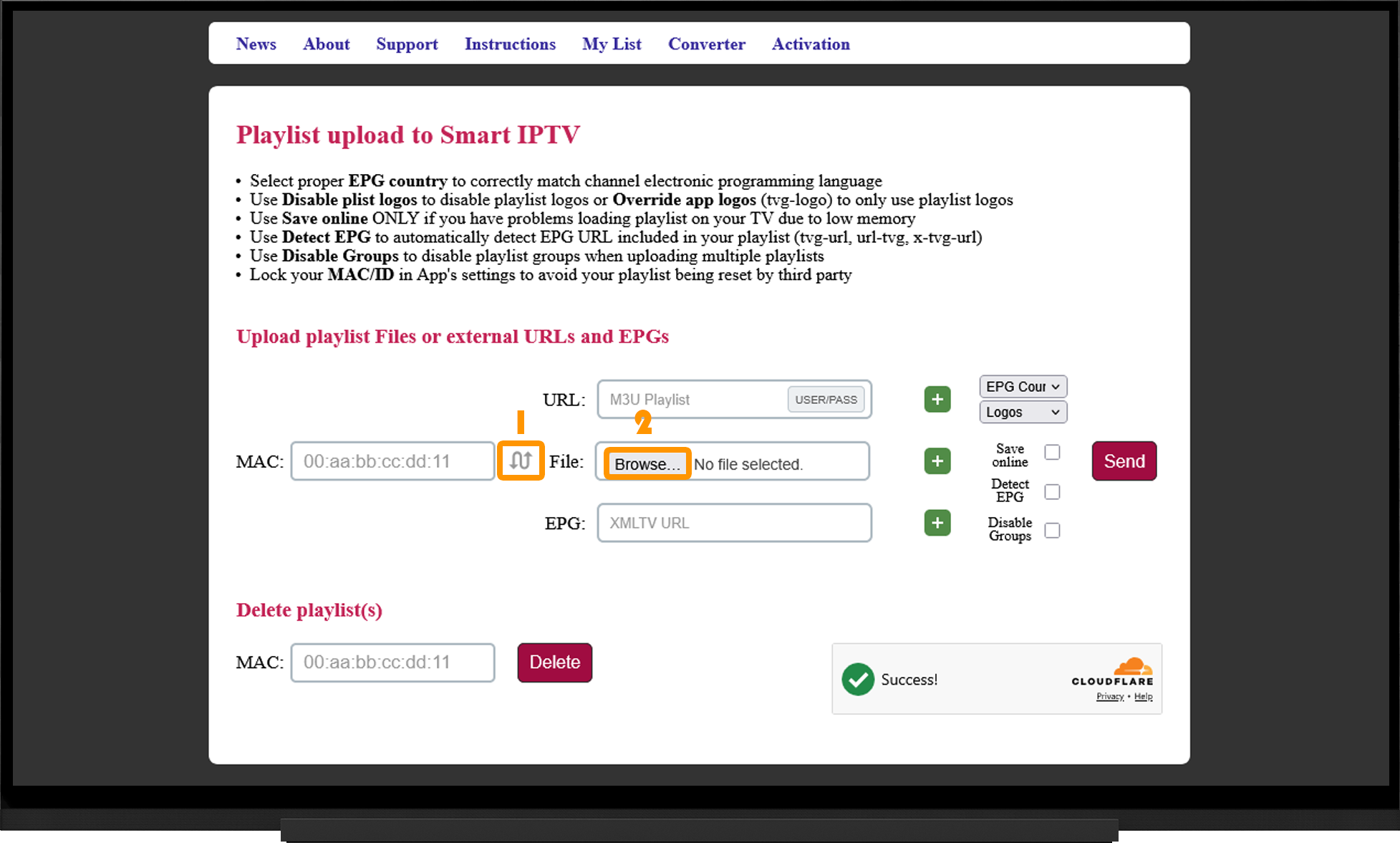
Adding a Playlist from a File
Download the playlist file to your PC or smartphone, then open the Smart IPTV playlist upload page:
- Click the swap fields icon so that the File field is displayed next to the MAC/ID field.
- Click Browse and select the playlist file.
- Configure the remaining options the same way as when adding a playlist using a direct link.
Note:
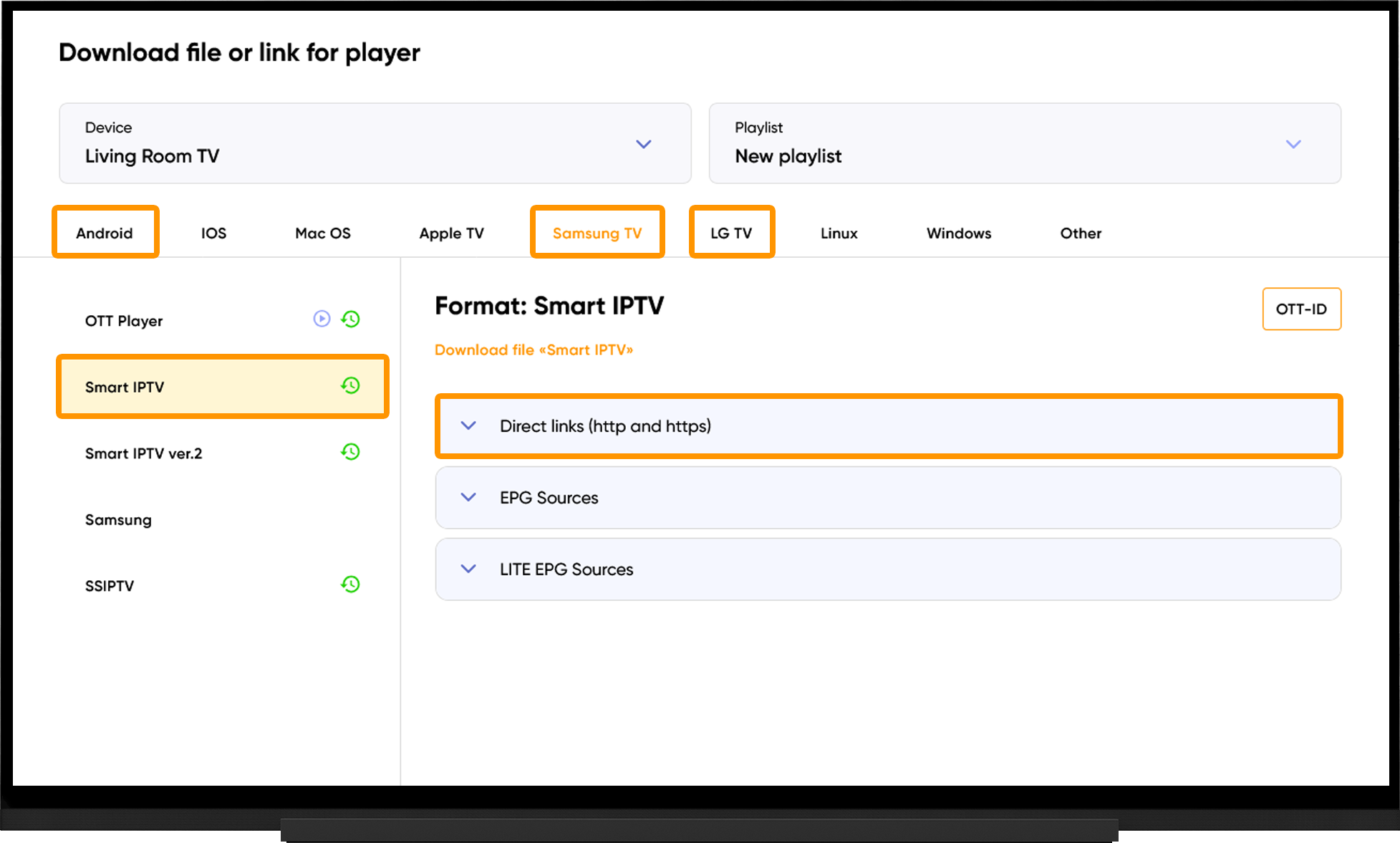
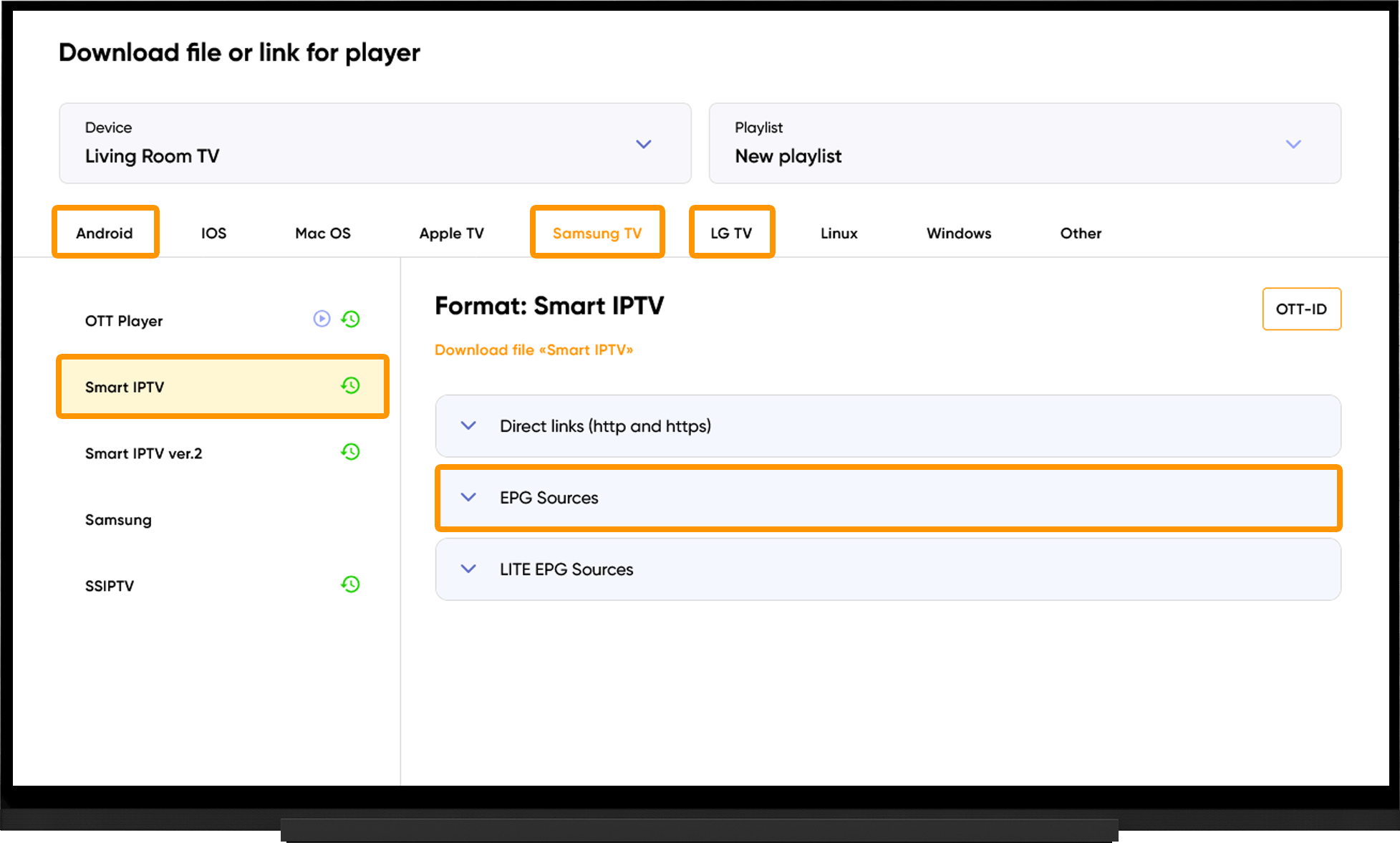
To obtain the playlist URL or download the playlist file, go to the My Devices section and click "Download" next to your device:
- Select your device type.
- Choose Smart IPTV (Smart IPTV ver.2 is intended for older TV models).
- Under Direct Links (HTTP and HTTPS), either copy the playlist URL or click "Download File", depending on your preferred method of adding the playlist.
EPG (TV guide)
When using a compatible playlist URL, the TV guide is loaded automatically. After uploading the playlist, restart the Smart IPTV application and wait for the data to finish updating. The initial EPG download may take several minutes.
If the TV guide does not appear:
- Open the playlist upload page on the Smart IPTV website.
- Enter your device's MAC address or Device ID.
- Paste the EPG source link into the "EPG" field.
- Clear the "Detect EPG" checkbox if it is enabled.
- Click "Send".
- Completely close and reopen the Smart IPTV application.
Note:
To obtain the EPG source link, go to the My Devices section and click "Download" next to your device. On the playlist download page, expand the EPG Sources section.
Frequently asked questions
MAC address changes after switching the TV's network connection:
- Every TV has two MAC addresses: one for Wi-Fi and one for Ethernet. When you switch to a different connection type and restart the application, the corresponding MAC address becomes active automatically. The MAC address is unique to each TV and cannot be changed manually.
- If you activated your subscription using one MAC address, it will not work when using the other network connection until it is activated as well.
- Starting with version 3.0.0 on LG webOS TVs, the application no longer has access to the MAC address and displays only the Device ID. If your TV was previously activated using its MAC address, it will continue to work automatically after launching the application. You can also continue using the original MAC address when uploading playlists.
The Smart IPTV website or application is inaccessible:
- Your Internet provider may be blocking access to the Smart IPTV website or application. Try changing the DNS server in your TV or router network settings to 1.1.1.1 or 8.8.8.8.
"Server (URL) connection timeout", "Check playlist URL", or "No playlist uploaded":
- Try uploading the developer's test playlist: http://siptv.app/lists/example.m3u. If it works, check your playlist link for errors.
- Try uploading the playlist as a file instead of using a direct link.
- If you see the "Check playlist URL" message, disconnect your TV or device from power for about one minute to clear the cache. Then force a playlist refresh by holding the "0" or "CH" button on the remote, or by pressing and holding the "Reload" button (this disables the application cache).
- Reduce the playlist size by removing unnecessary channels, especially if you have an LG LM-series TV with limited memory.
- Try disabling the external EPG or clearing the "Detect EPG" option when uploading the playlist.
- If the playlist does not appear or disappears after restarting the TV, enable the "Save online" option.
- Samsung TV users may also benefit from resetting Smart Hub or completely powering off and restarting the TV to clear the cache.
Note: The amount of storage available for application data on Smart TVs is limited. If the playlist is too large, the application may not be able to save it.
"Stream failed", "Cannot connect", or endless "Buffering..." while the playlist works on other devices:
- Run the Server Selection tool, switch to the recommended server, wait 10 minutes, and then restart the application.
- Delete the existing playlist using the "Delete playlist(s)" option on the playlist upload page, then upload it again. Also try both HTTP and HTTPS playlist links.