
Frequently Asked Questions
Updated: September 18, 2026
Frequently asked questions
How do I start using the service?
After completing registration and signing in to your account, you will need to go through five simple setup steps.
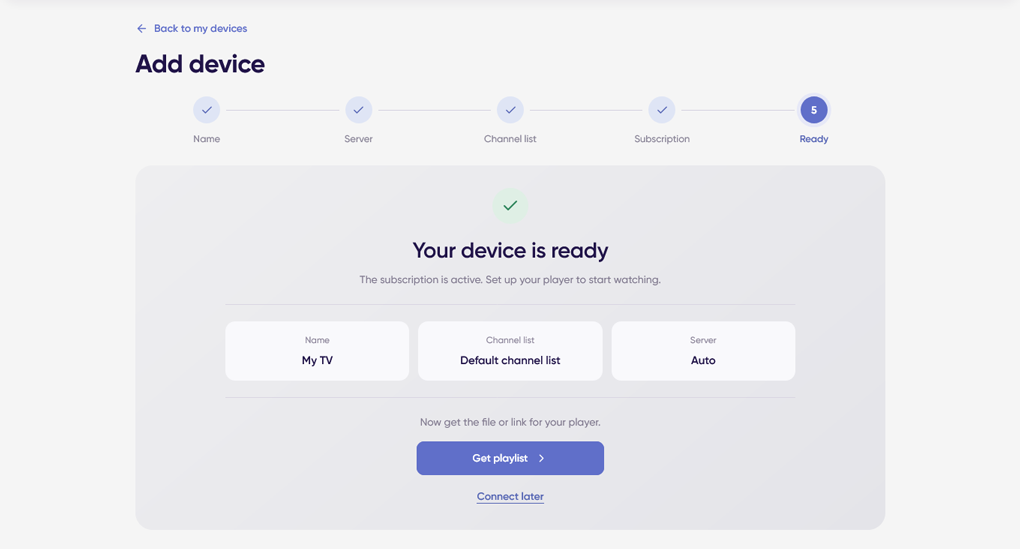
In the My Devices section, click "Add Device":
1. Name — give the device any name (for example, "My TV") and click "Next".
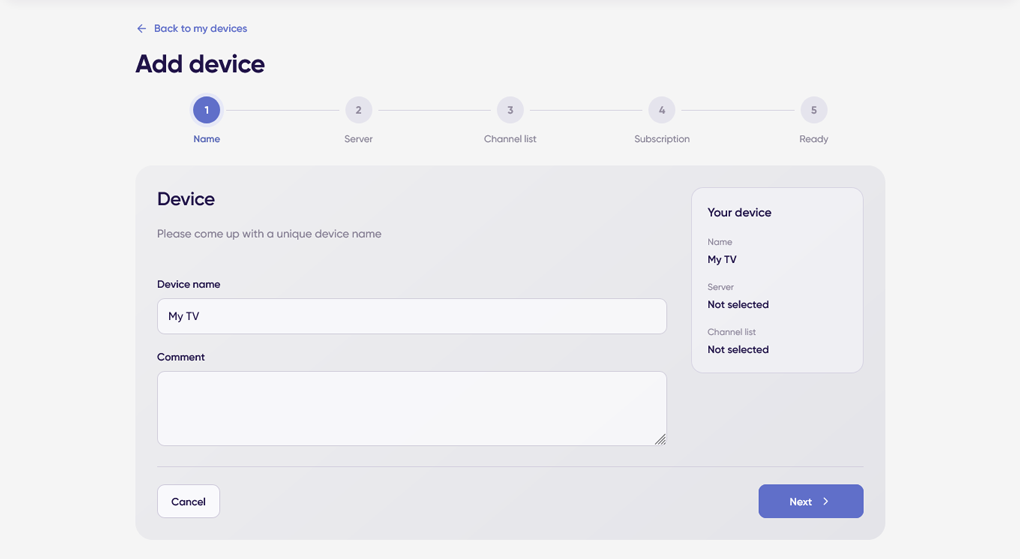
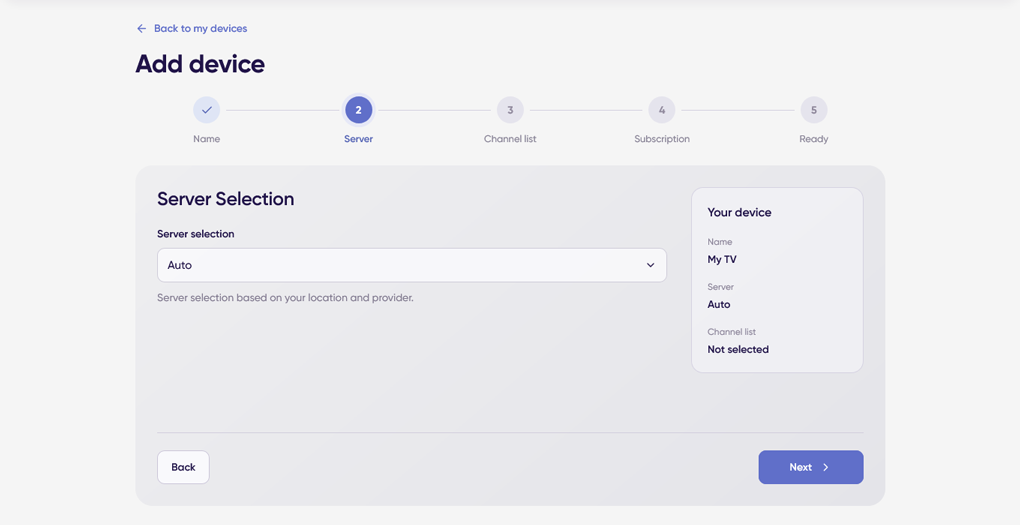
2. Server - choose one of the three available options:
- Auto - the server will be selected based on other users' results and your location.
- Selection by Test - click "Select" and wait for the test to complete.
- Manually - choose a server yourself from the list.
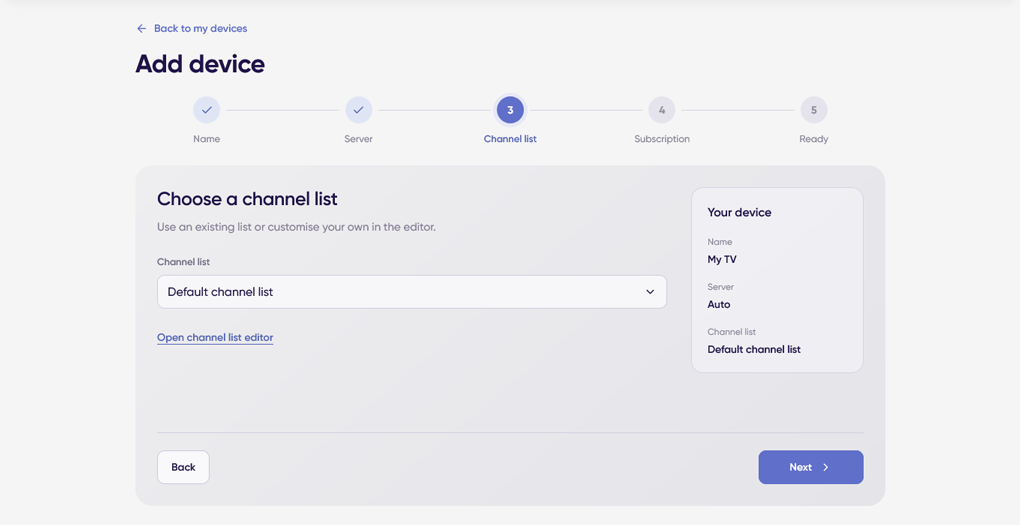
3. Channels - here you can select and assign a default channel list to the device or create and edit a personalized playlist in the Channel List Editor.
Please note that you can create your own channel list later at any time.
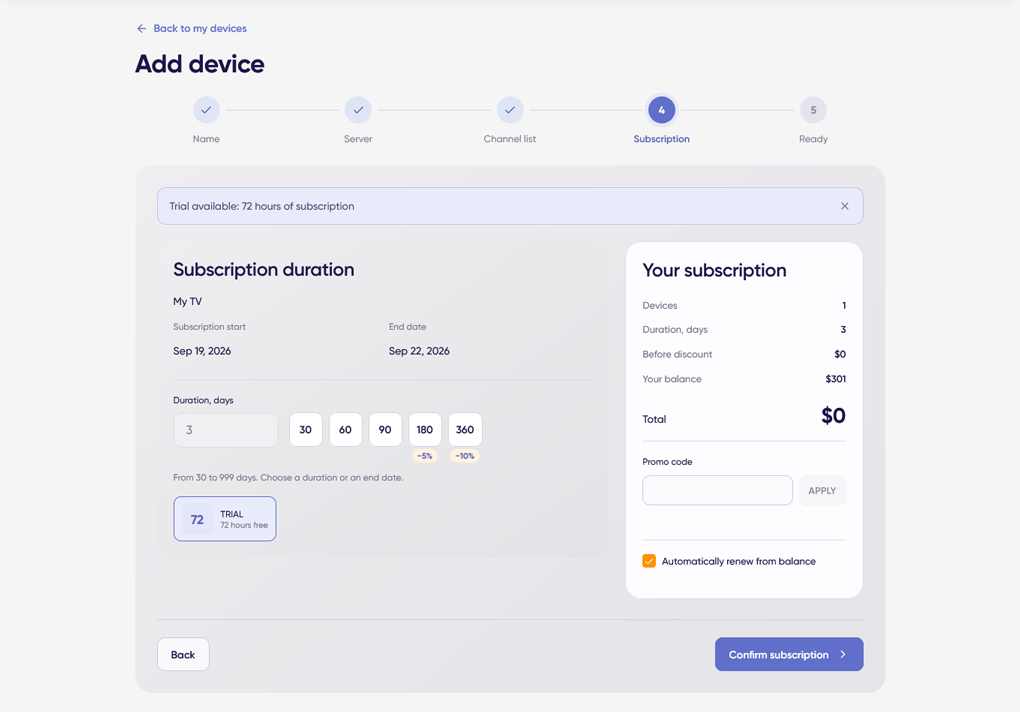
4. Subscription - select "TRIAL" to activate the 72-hour trial period.
Please note that at this step you can enable or disable the subscription auto-renewal option. This feature automatically renews your subscription, provided that your account balance contains sufficient funds.
5. Ready - the final step of the viewing setup.
- Select your device type.
- Select your player.
- "Playlist links" - copy the playlist link or click "Download File" if you prefer to use the playlist as a file.
- "Media Library" - used to configure players that support the media library feature.
- "TV guide · EPG" - links for configuring the EPG (Electronic Program Guide).
- "Compact TV guide · EPG Lite" is a lightweight version of the TV guide intended for less powerful devices.
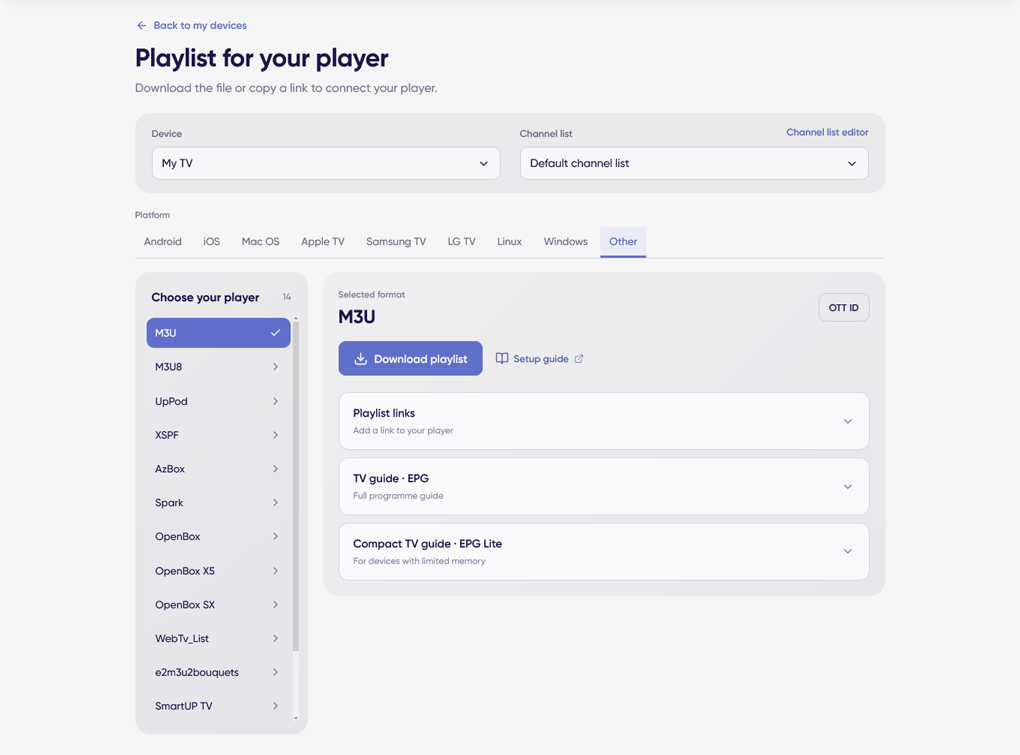
You can now proceed with setting up your IPTV player.
Which IPTV players do you recommend?
We recommend using the following IPTV players:
Samsung Tizen OS:
- Smart IPTV: supports catch-up TV (archive).
LG WebOS:
- Smart IPTV: supports catch-up TV (archive).
- SS IPTV: supports catch-up TV (archive).
Hisense Vidaa:
- SS IPTV: supports catch-up TV (archive).
Android:
- Televizo: supports catch-up TV (archive) and media library.
- OTT Navigator: supports catch-up TV (archive) and media library.
- TiviMate: supports catch-up TV (archive) and media library.
iOS / Apple TV:
- UniPlayer: supports catch-up TV (archive).
Please note that we cannot guarantee the proper operation of the playlist, catch-up TV (archive), and EPG in all IPTV players. Compatibility depends on the specific implementation and capabilities of each application.
We are also unable to influence errors, limitations, or changes in the behavior of third-party IPTV players, as we are neither their developers nor involved in their maintenance or support.
You may use any IPTV player that supports M3U playlists. However, in some cases, you may need to manually configure the Electronic Program Guide (EPG) and catch-up TV (archive) features, provided that the selected player supports them.
Which playlist type should I choose for my player?
Different types of playlist URLs are provided for different devices and apps. Using a playlist that matches your device and player generally allows options such as the EPG and catch-up to be configured automatically.
To get the correct playlist:
1. Go to the My Devices section and click the button to get the playlist.
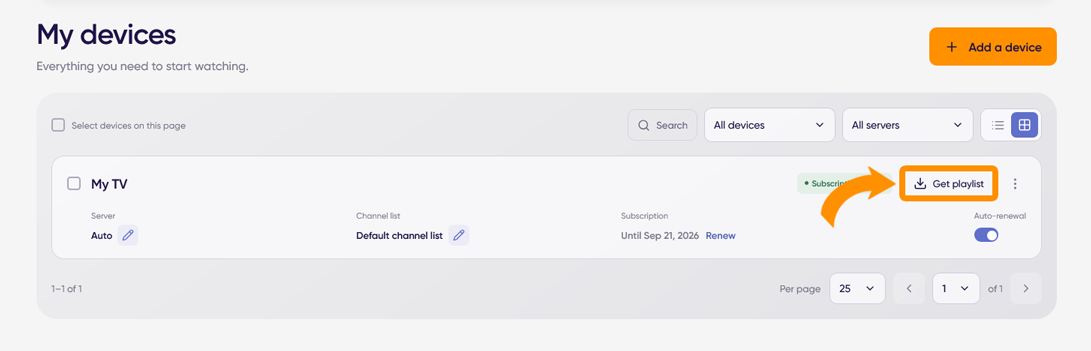
2. Select your device type (Android, iOS, Samsung, LG, etc.).
3. Select your player.
4. Under "Playlist Links", copy the playlist link and use it to configure your player.
%%%%%%%%%%%%%%%%%%%%%%%%%%%%%%%%%%
Note: If your player is not listed, try using the standard M3U/M3U8 playlist links.
Please note that in this case you will most likely need to manually specify the EPG (Electronic Program Guide) source URL in your player's settings.
How do I change the channel list in my playlist?
The Playlist Editor allows you to disable individual channels and entire groups, change their order, and create custom groups with your favorite channels.
After you finish editing, update the playlist in your player settings.
- If you have multiple playlists, select the playlist you want to edit.
- Custom Groups - click "+ New Group", enter any name, and then move your favorite channels from other groups into it.
- A custom channel group is useful if you use multiple players on different devices and want quick access to your favorite channels.
- Channel Groups - click a group name to open it. To disable a group, uncheck the corresponding box. To change the order of groups, hover over a group, click and hold the drag handle, then move the group up or down the list.
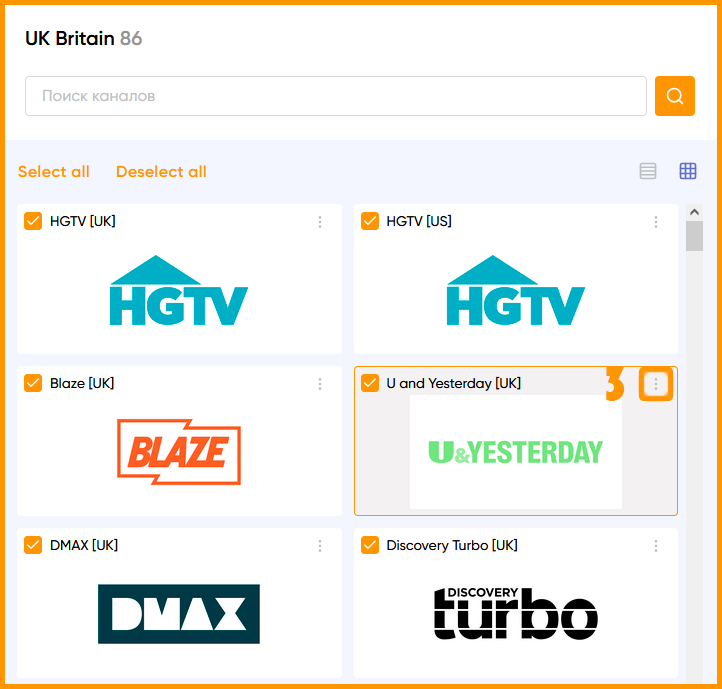
- Managing Individual Channels - uncheck the channels you do not want to appear in the playlist. When you hover over a channel tile, a drag handle will appear. Click and hold it to move the channel within the group or transfer it to another group.
- Playlist Management - click "Create Playlist" to add a new playlist.
- Playlist Settings Menu - you can rename a playlist, restore its default settings, or delete it.
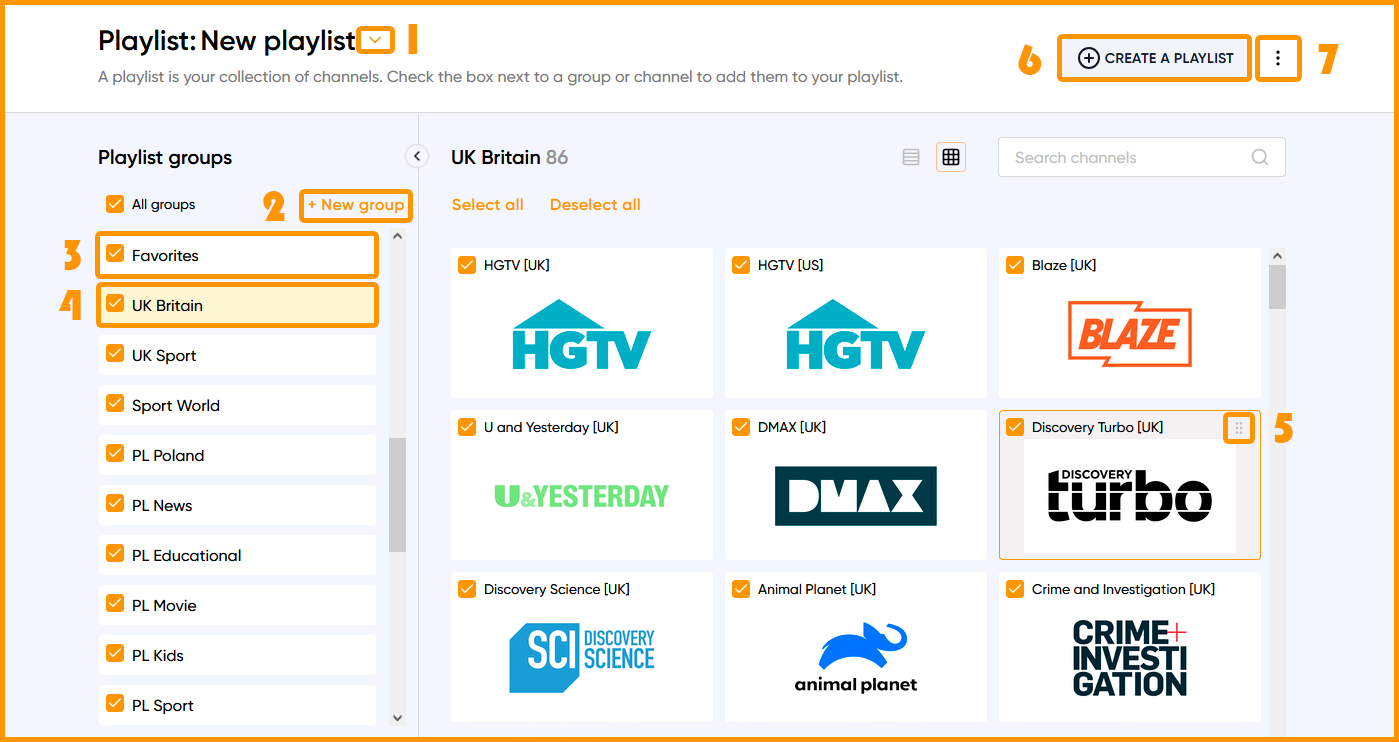
The mobile version of the Playlist Editor differs slightly from the desktop version in terms of navigation and controls, but it provides the same set of features.
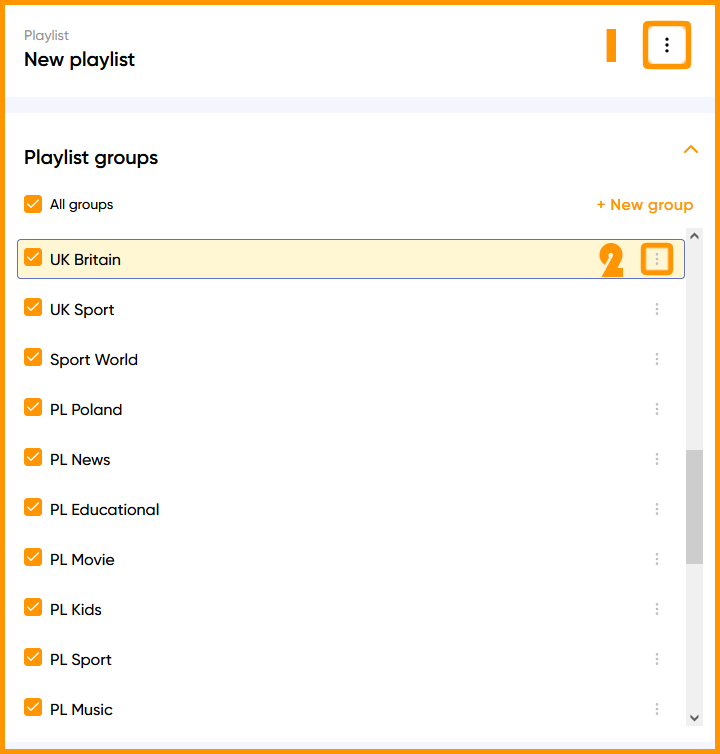
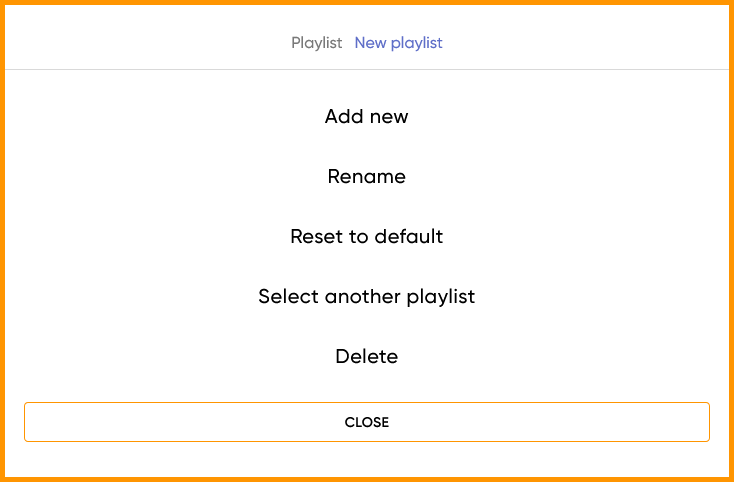
1. Playlist Management and Additional Settings Menu:
- Add a new playlist
- Rename the current playlist
- Restore default settings
- Select another playlist (if you have created one previously)
- Delete the current playlist
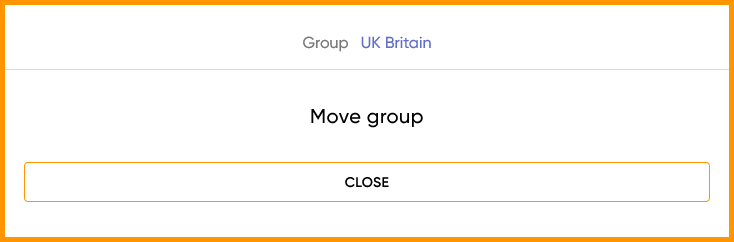
2. The channel group settings menu allows you to move groups up or down within the playlist.
3. Channel Settings Menu:
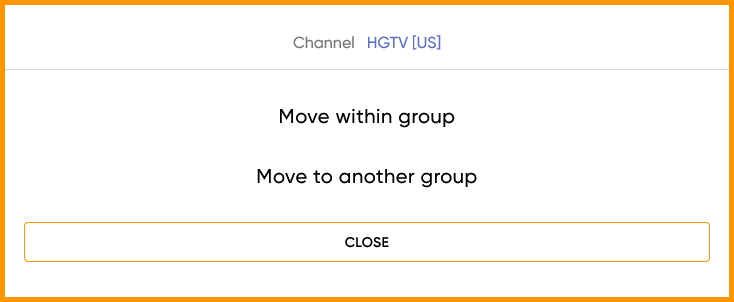
- Move a channel within a group: select the channel, then choose "Before Channel" or "After Channel".
- Move a channel to another group: select the destination group where you want the channel to be moved.
Some channels have no sound or no picture. How can I fix this?
In most cases, the issue is caused by incorrect decoder settings in your player or device.
- Try selecting a different decoder in your player's settings and then restart the device.
- Disable any audio enhancement modes (such as Movie, Music, etc.) and restart the device.
- If you are using a soundbar or home theater system, make sure the appropriate Passthrough mode is configured and enabled correctly. Also, test the playlist playback directly on the TV without the soundbar connected.
- Make sure you are using the latest software version. If not, update both your IPTV player and your device's operating system.
My internet connection is fast, but IPTV channels are buffering. What should I do?
It is important to understand that internet speed test services measure the speed of your connection to the nearest server of your internet provider.
When watching IPTV, your device connects to remote servers that may be located in completely different regions. As a result, the connection quality and speed may differ significantly from the results shown by Speedtest and similar services.
What you should do:
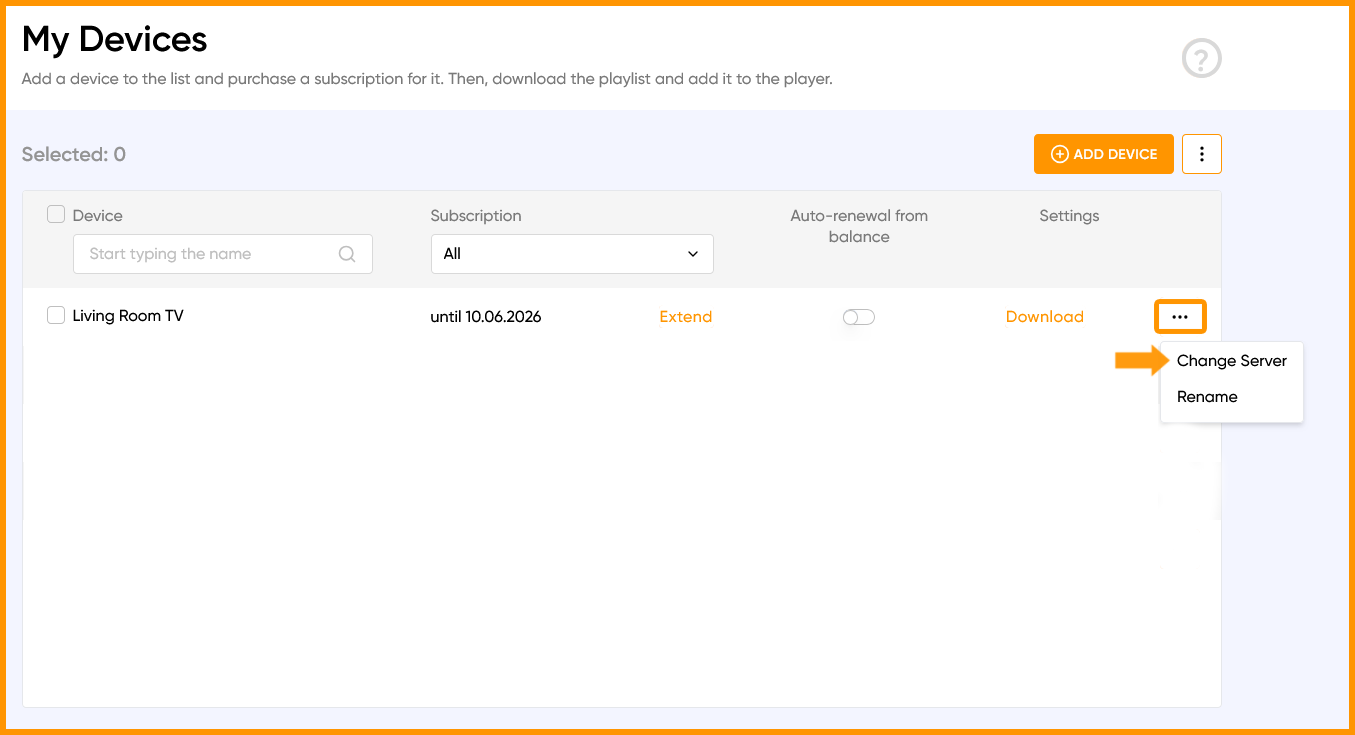
1. In the My Devices section, click the three dots next to your device and select "Change Server."
2. Choose "Selection by Test" and run the test.
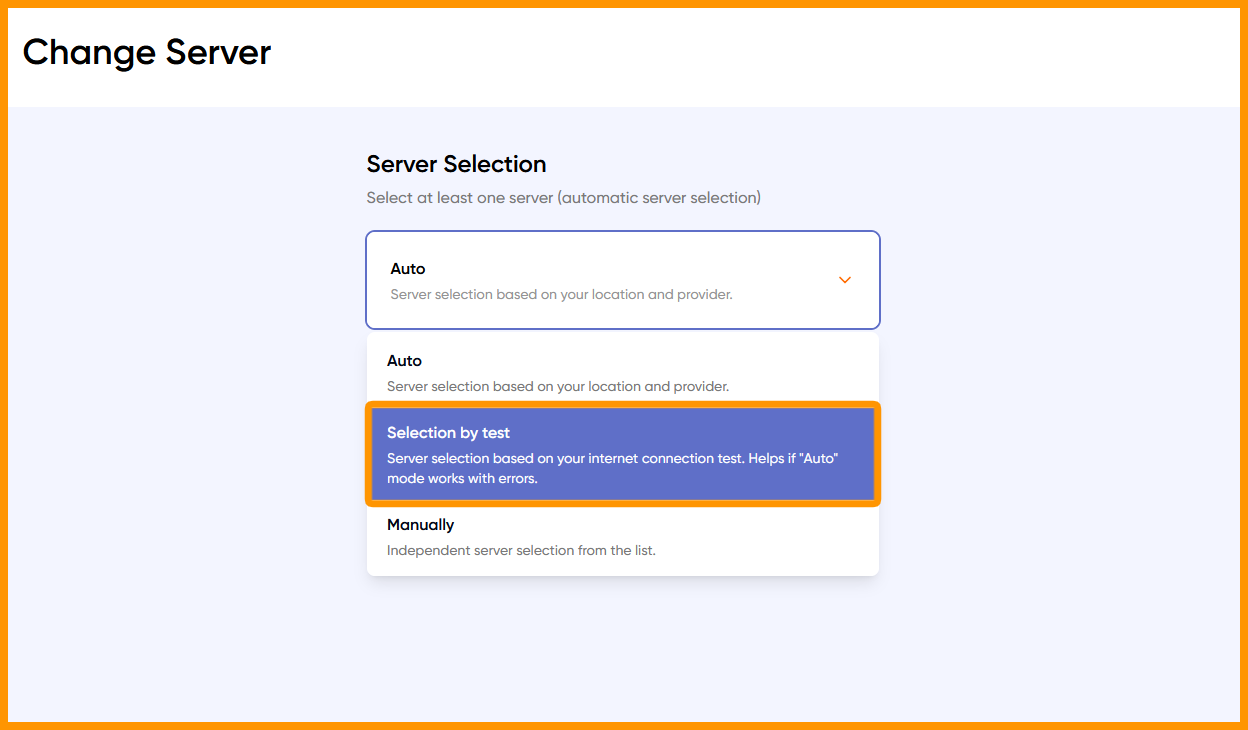
3. Once the test is complete, the best server for your connection will be selected automatically. Save the result and restart your player after 10 minutes.
Tip: For the most stable connection, we recommend connecting your device to your router using an Ethernet cable. This can significantly reduce latency, buffering, and connection drops.
What should I do if channels do not start playing?
- Check your internet connection.
- Restart your IPTV device and router.
- Make sure you are using the correct playlist type for your device and player.
- Try changing the server by running the server selection test, then restart your player after 10 minutes.
- Make sure your subscription has not expired.
- In some cases, removing and re-adding the playlist in your player may help.
If the issue persists, please contact technical support through your account. We will do our best to help.
How many devices can be connected under a single subscription?
A single subscription allows up to two devices to be connected simultaneously.
If a third device attempts to connect, streaming will be automatically blocked on all devices.
The block is removed automatically. Please make sure that your playlist link is being used on no more than two devices at the same time, then restart your IPTV player 15 minutes after the block was triggered.
Can I watch the playlist on more than two devices simultaneously?
Yes. To do so, add the required number of devices in the My Devices section and purchase a subscription for each of them.
Please note that each subscription has its own playlist link, allowing you to select different servers and channel lists independently for each subscription.
This is especially convenient if your family members or friends use the service from different cities or countries.
Can I watch the playlist from a different location, city, or country?
Yes, our service works worldwide. The main requirement is a stable internet connection to our servers.
If you travel frequently, we recommend running the server selection test each time you change your location or internet provider. This will help ensure the best possible streaming experience.
Streaming has been blocked due to exceeding the simultaneous connection limit. What should I do?
Make sure that your playlist link is not being used on more than two devices at the same time.
Restart your IPTV player 15 minutes after the block occurred.
In some cases, exceeding the connection limit may be caused by:
- An internal IPTV player error that generates duplicate requests.
- Launching multiple players one after another without properly closing the previous one.
- Brief internet interruptions or packet loss without a full connection drop.
- Short power outages.
Recommendations for resolving the issue:
- When switching to another player, make sure to fully close the previous one, including any background processes. For example, on Android devices, terminate the previous player's background processes before opening another player.
- Restart your IPTV device and router by disconnecting them from power for a few minutes.
- If restarting the equipment does not solve the issue, try reinstalling the IPTV player and configuring it again.
If streaming blocks occur regularly, it is possible that your playlist link has been shared with a third party. To resolve this, update your OTT-ID:
1. Go to My Devices and click "Download" to open the playlist download page.
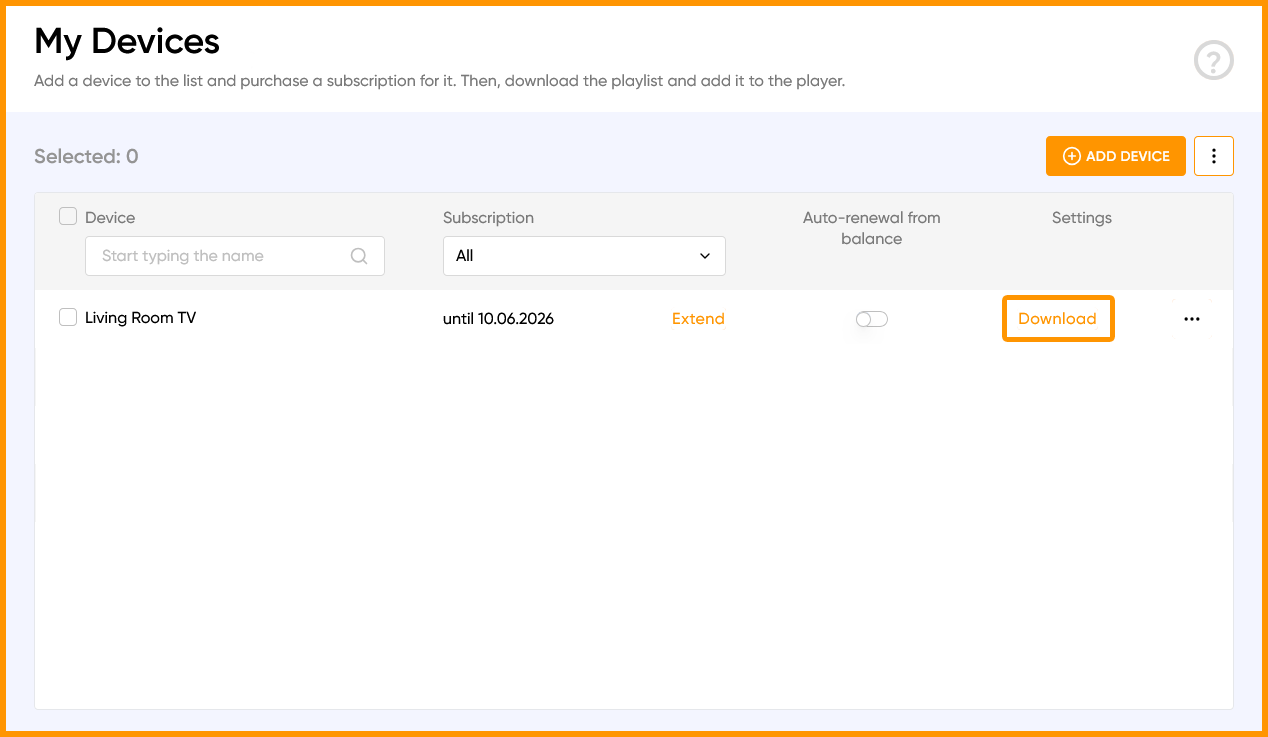
2. Click the "OTT-ID" button and generate a new OTT-ID.
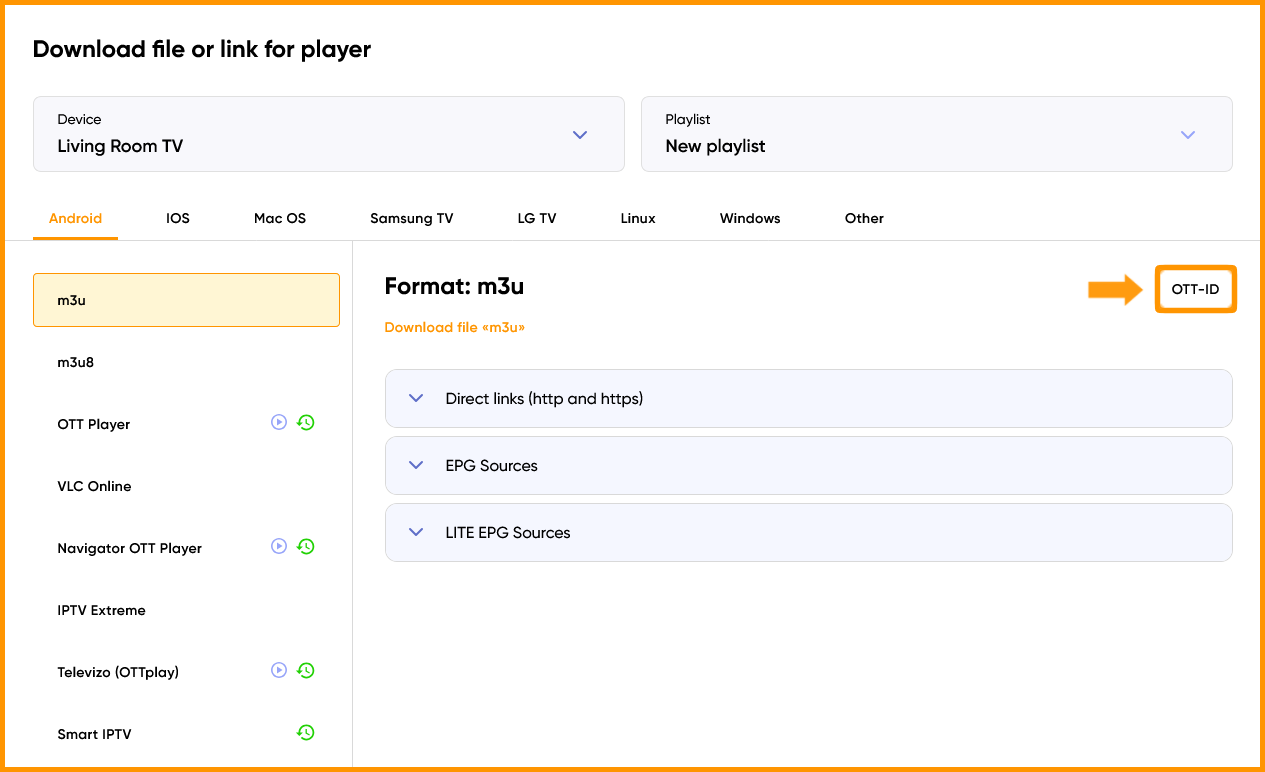
3. After updating it, replace the playlist link in your player's settings with the new one.