
Televizo
Updated: August 03, 2026
Installation
Televizo is a freemium IPTV player featuring a fast, minimalist interface, excellent remote-control support, and the ability to manage multiple playlists.
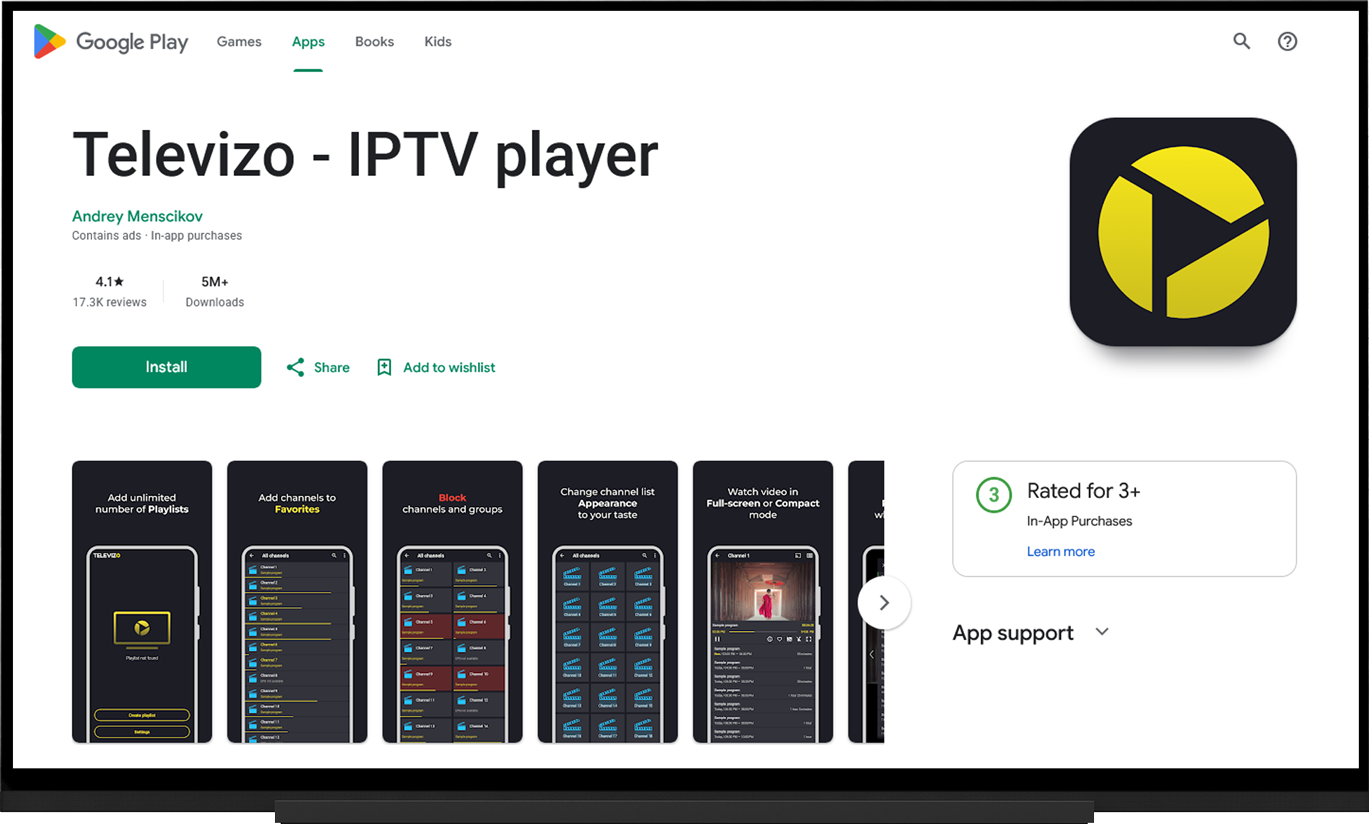
You can install Televizo in two ways:
1. Install from Google Play Store:
- Open the app store on your device.
- Search for Televizo.
- Install the application.
2. Install via APK File:
- Download the APK file from the developer's official website
- Transfer the file to your device (for example, using a USB drive) if it was downloaded on another device.
- Open the APK file using any file manager on your device.
- Allow installation from unknown sources if prompted.
Adding a Playlist
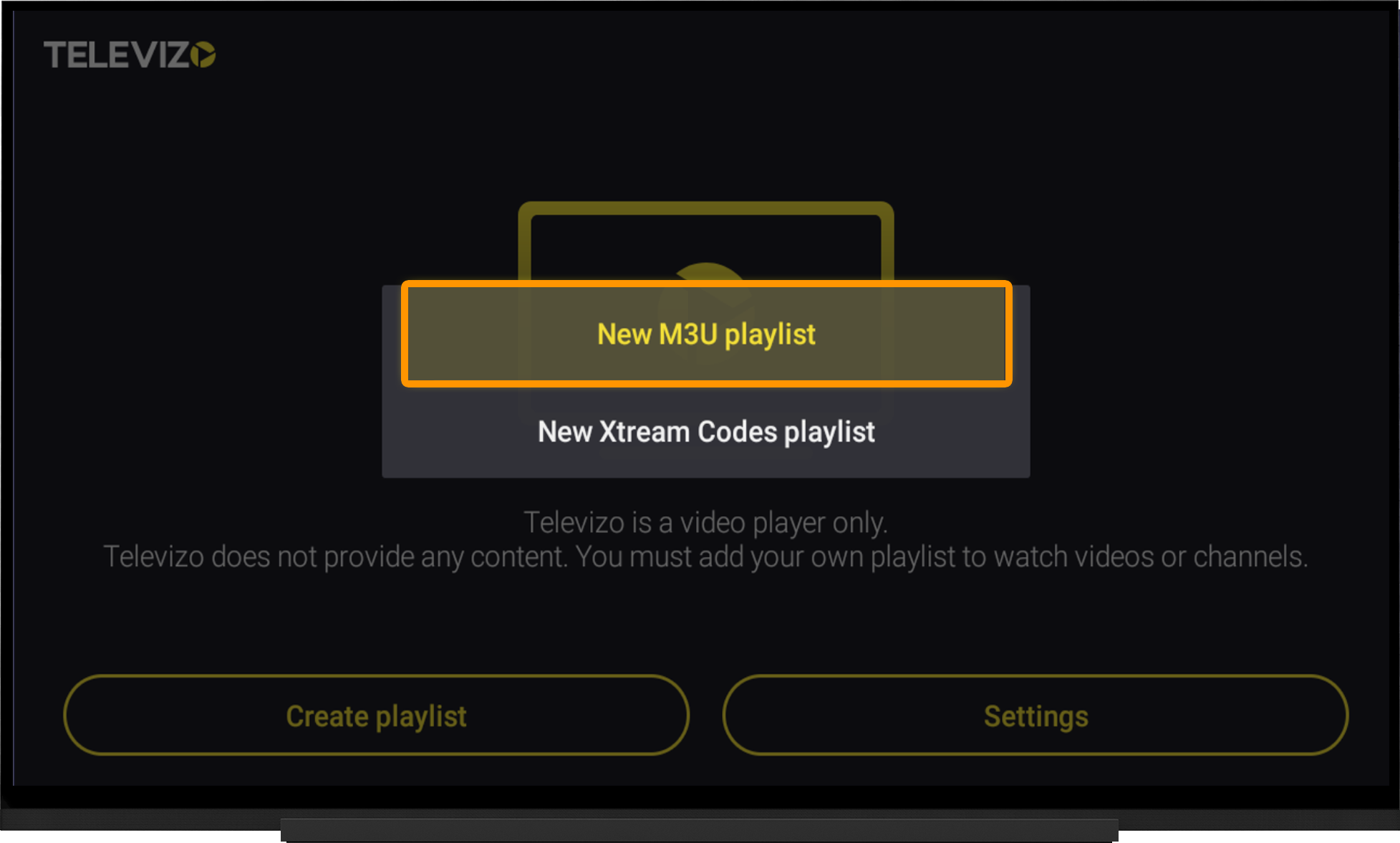
After launching the application for the first time, select "Create Playlist" and then "New M3U Playlist".
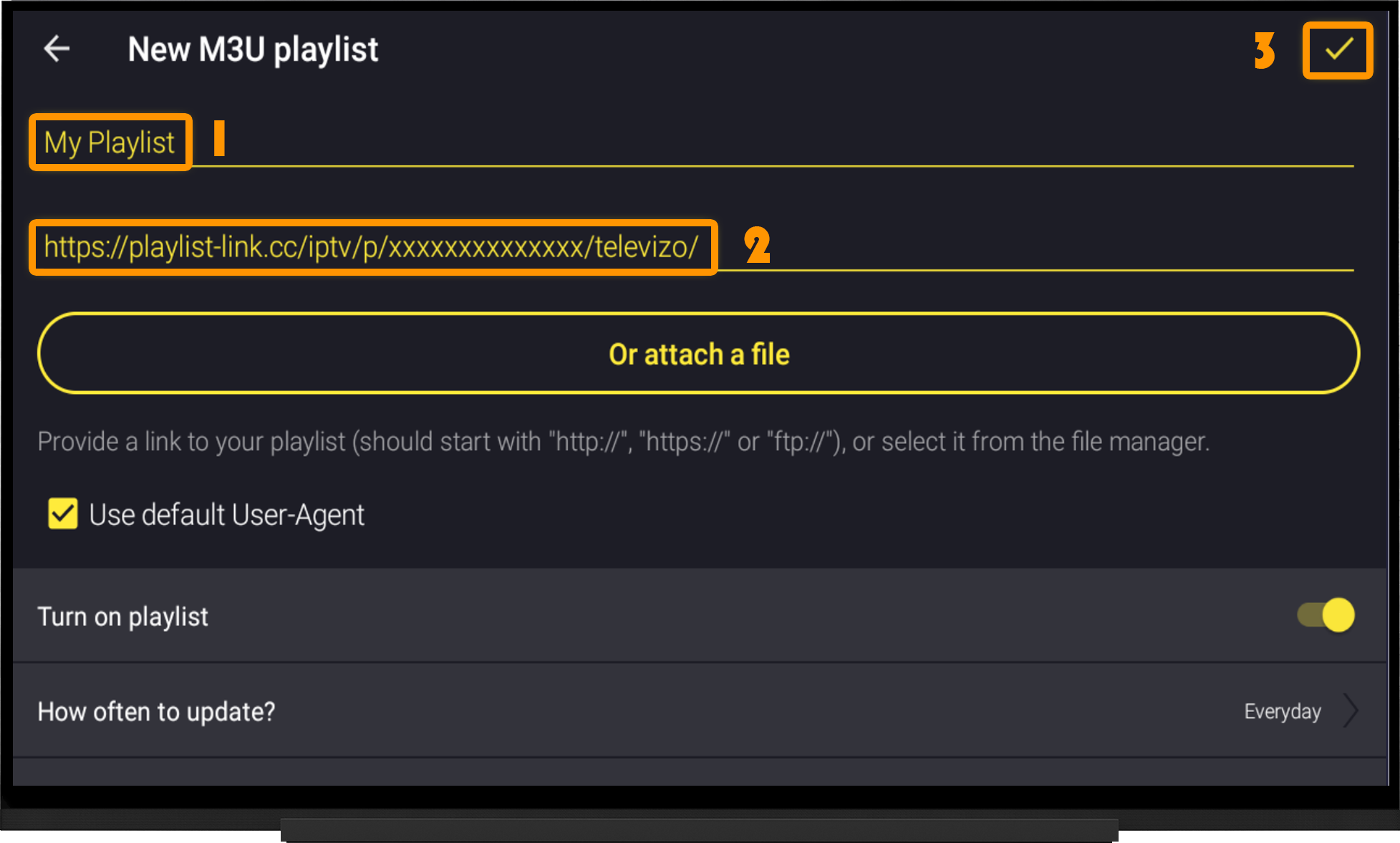
Adding a Playlist Using an M3U Link
- Playlist Name - enter any name (for example, "My Playlist").
- Link to the playlist - paste your direct playlist link.
- Click the checkmark in the upper-right corner to save.
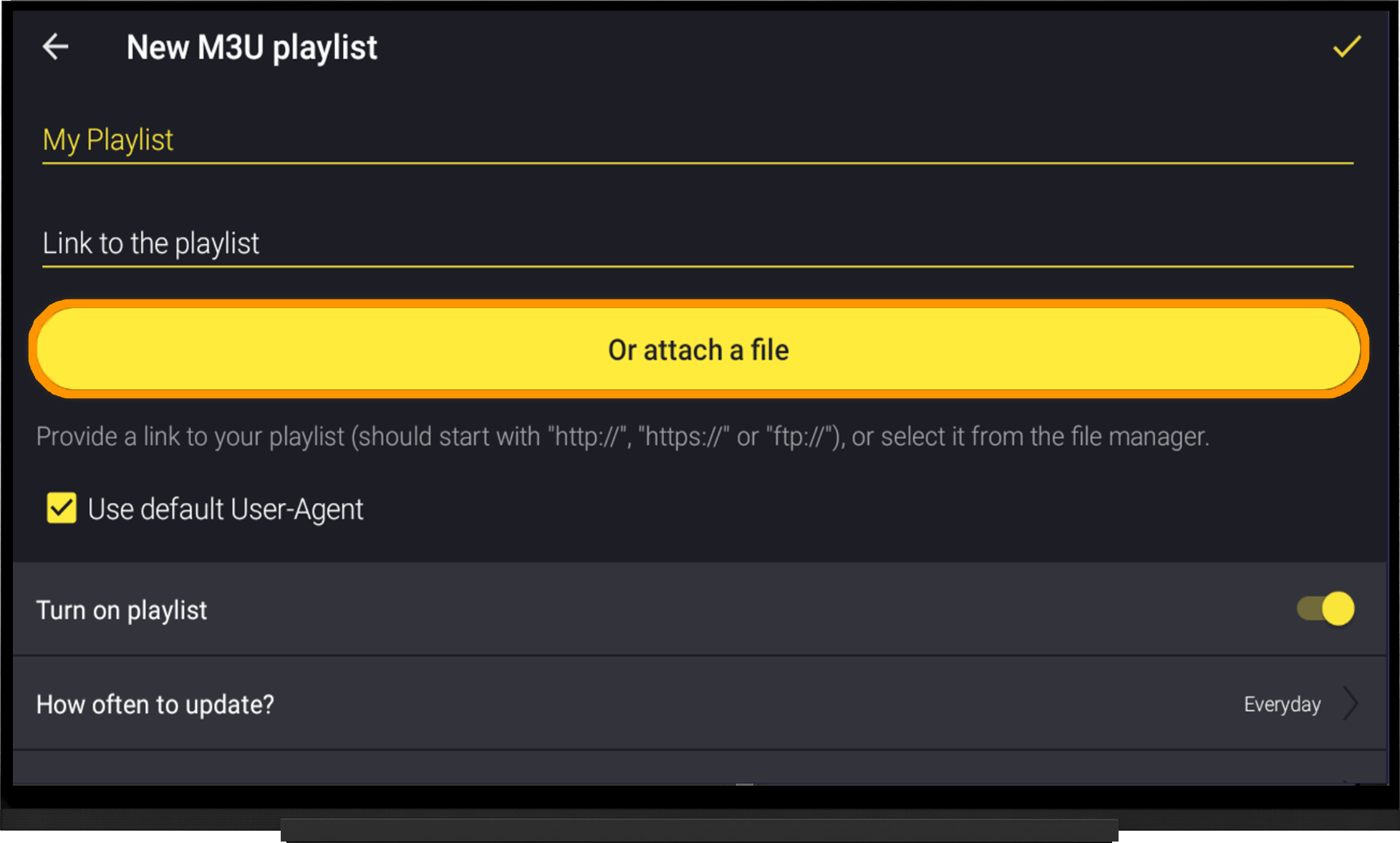
Adding a Playlist Using a File
- Download the playlist file to your IPTV device.
- When creating a playlist, select "Or attach a file".
- Browse to and select the playlist file.
- Save the changes by tapping the checkmark in the upper-right corner.
Note:
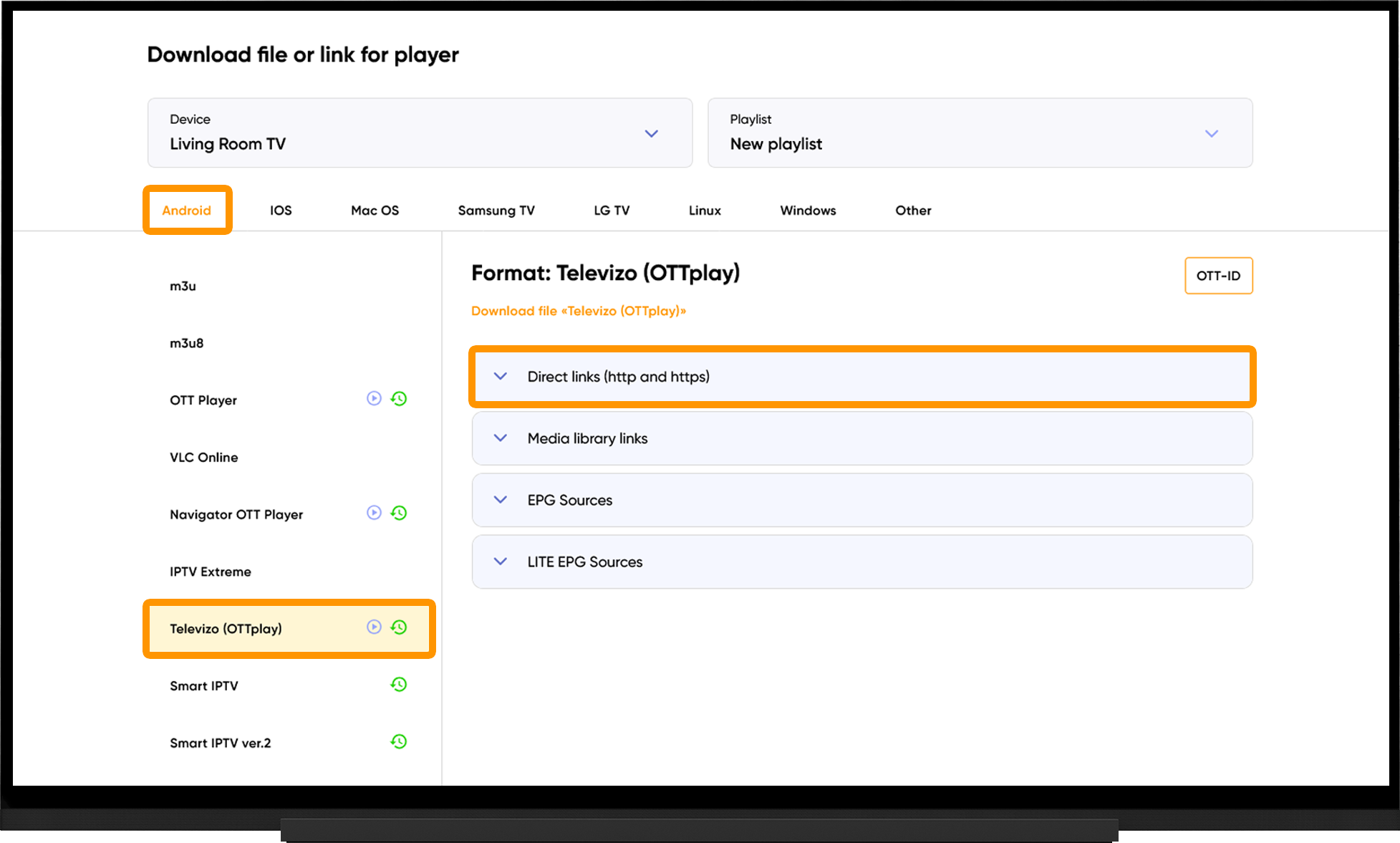
To obtain the playlist link or playlist file, go to the My Devices section:
- Click "Download" next to the device name.
- Select Android.
- Select Televizo (OTTplay).
- Under "Direct Links (http and https)", copy the playlist link or click "Download File".
Catch-up TV
When using the correct playlist link for Televizo, catch-up TV (archive) will be available without any additional configuration.
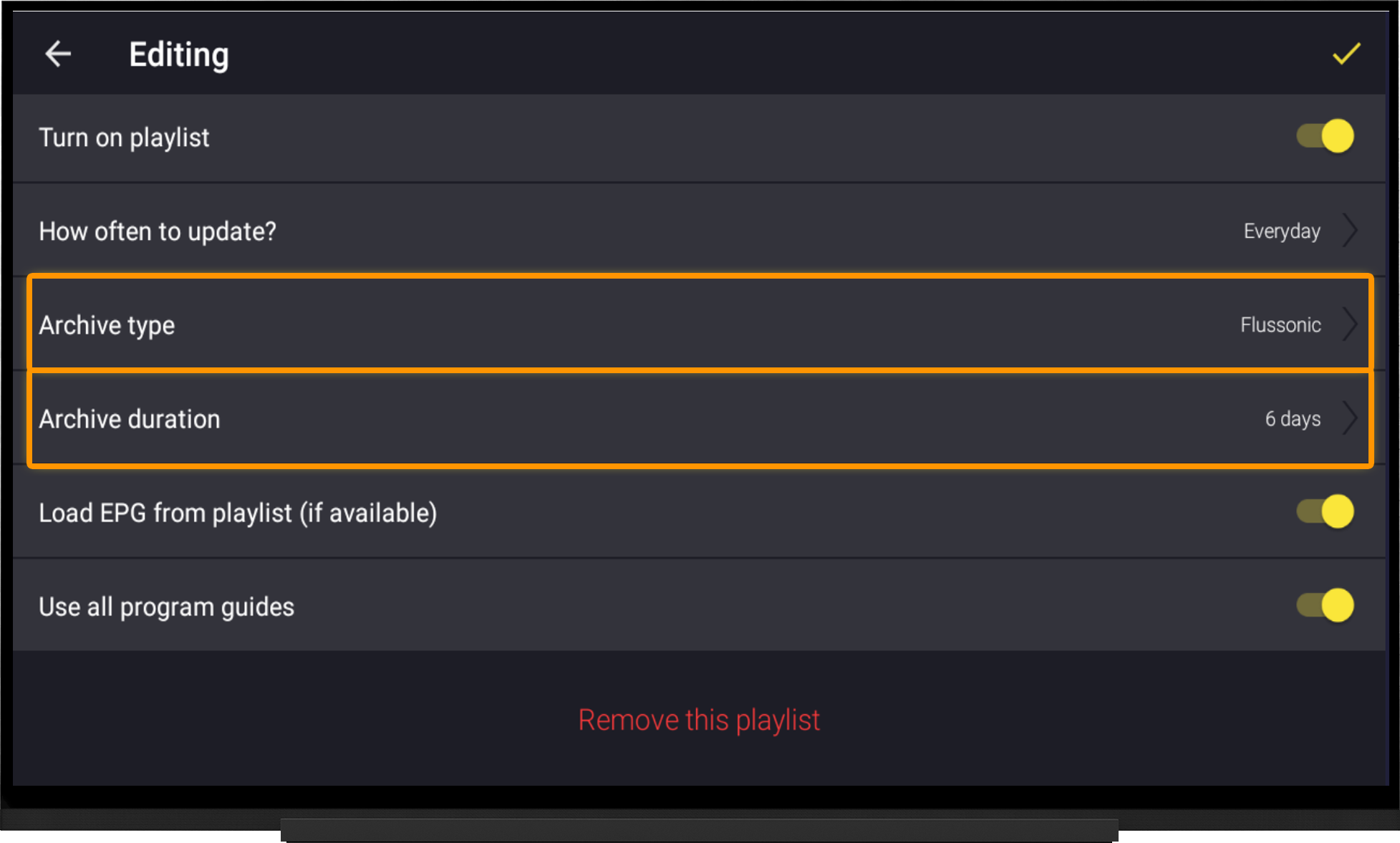
If you added the playlist using a standard M3U link, configure the following playlist settings:
- Archive Type - Flussonic
- Archive Duration - 6 days
- Save the changes and refresh the playlist.
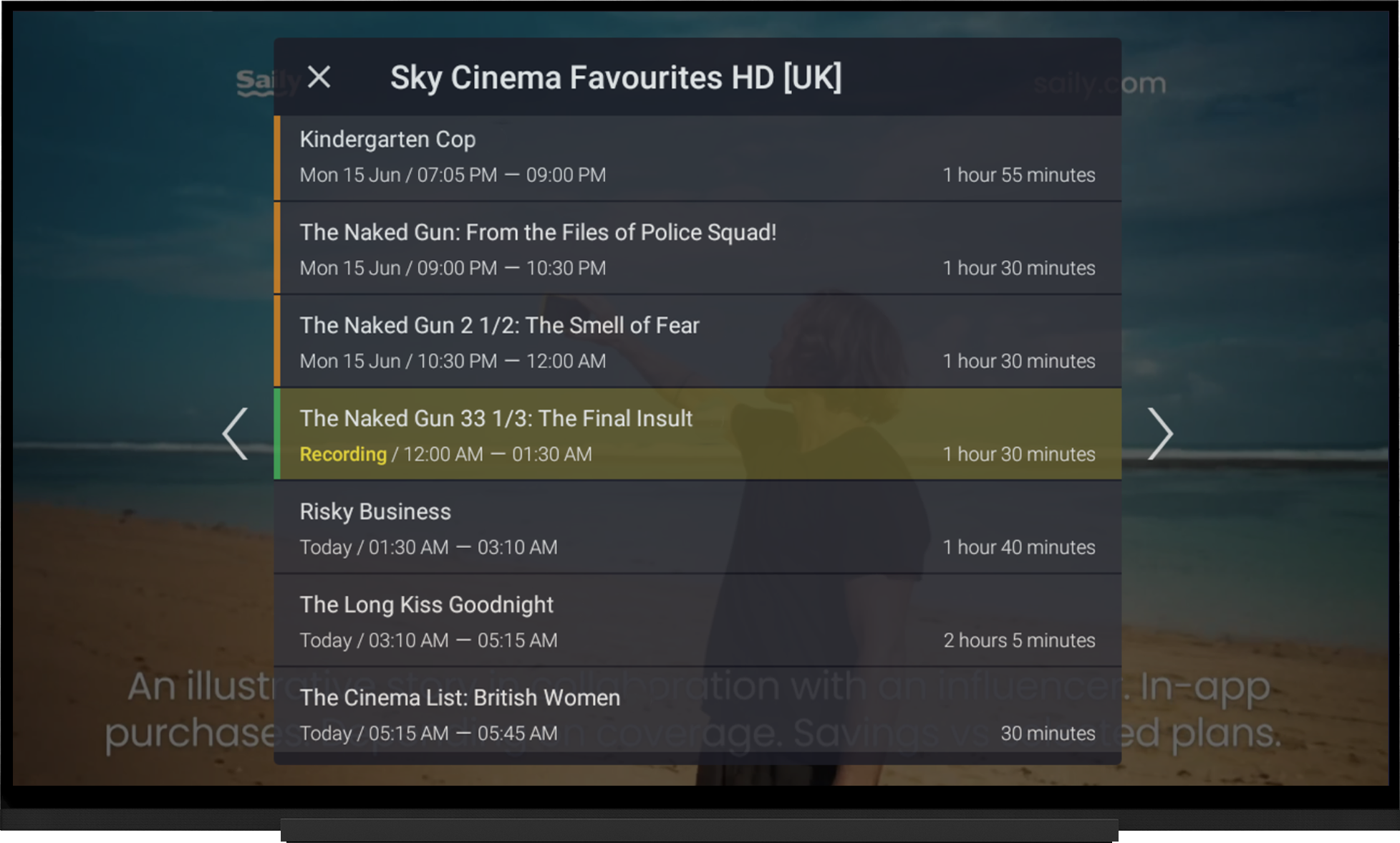
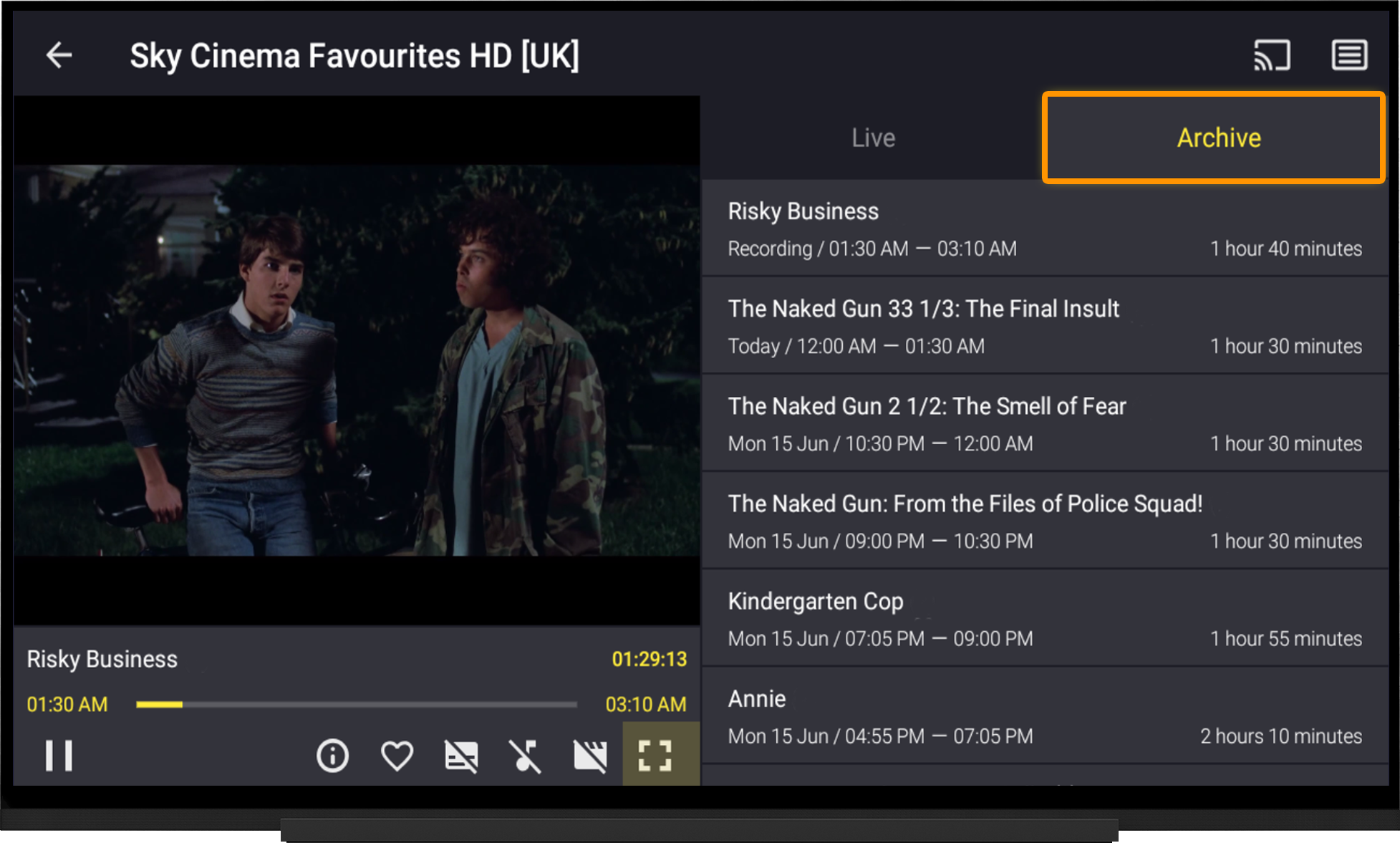
To access catch-up TV (archive), press and hold the OK button on your remote control until the TV Guide window appears, or open the "Archive" tab after exiting full-screen playback mode.
EPG (TV guide)
The EPG source is added automatically when you use the correct playlist link for Televizo.
Please note that EPG data starts downloading automatically after the playlist is added and may take some time to complete. If the TV guide is not displayed immediately, make sure the update process has finished.
If the EPG is still not displayed:
- Open the player's Settings.
- Select "Update EPG data"
- Wait for the update to complete.
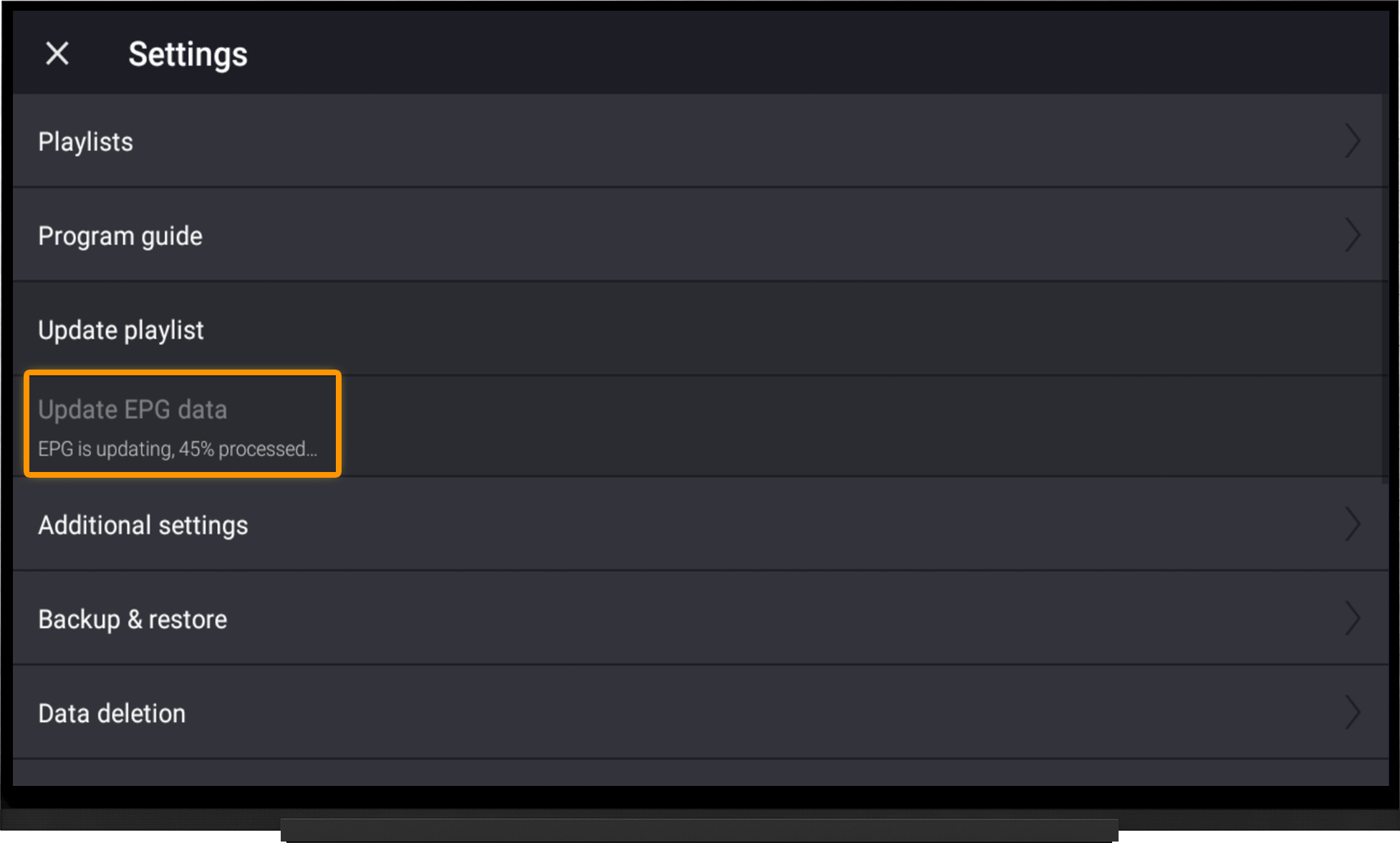
If the EPG source has been removed for any reason, you can add it manually:
- Open the player settings and select "Program Guide".
- Click the "+" button in the upper-right corner.
- EPG Name – enter any name, for example, "EPG".
- Link to the EPG – enter the EPG source link.
- Save the changes and wait for the EPG download to complete.
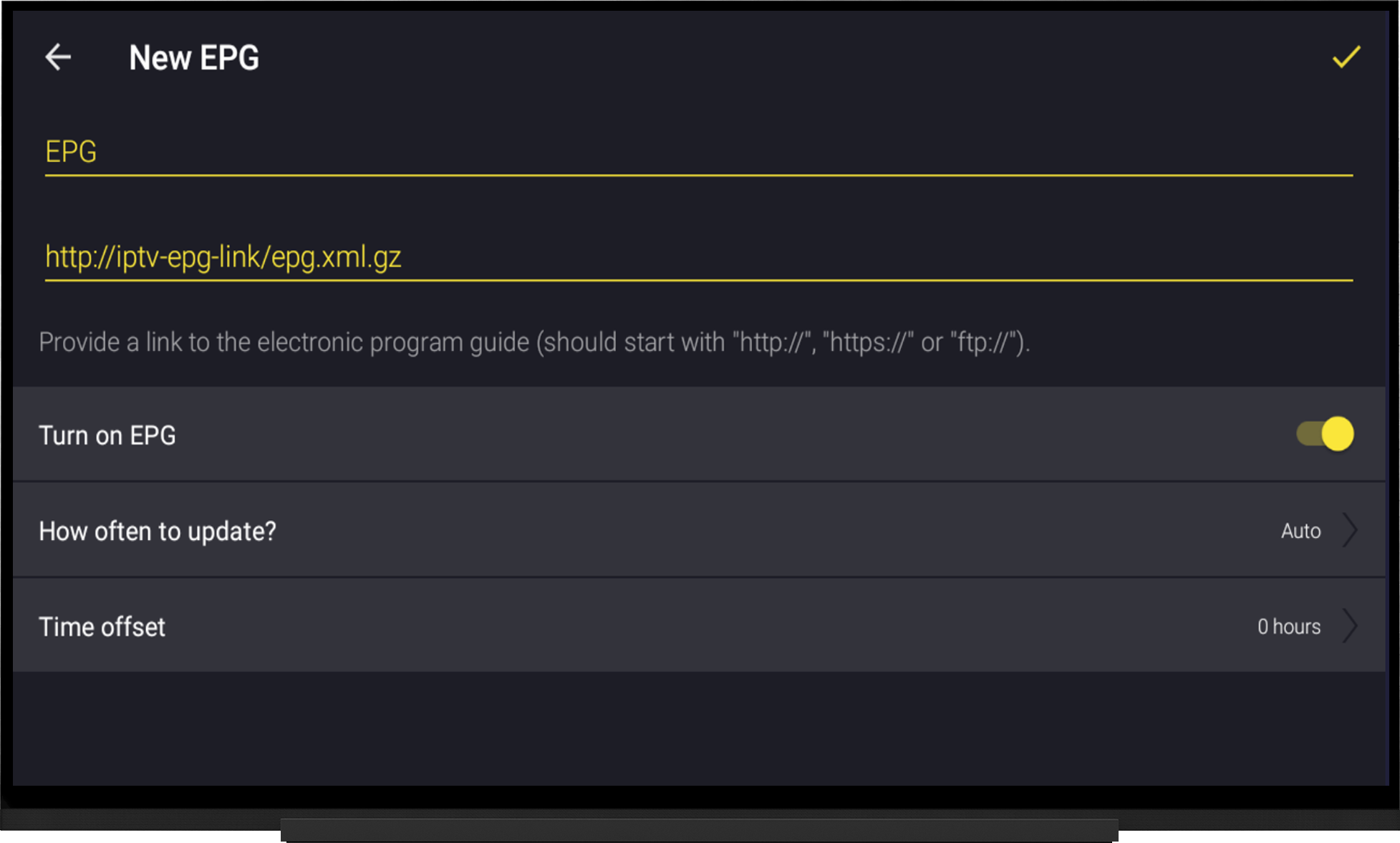
Note:
To obtain the EPG source link, go to the My Devices page and click "Download" next to the device name.
On the playlist download page, expand the "EPG Sources" section to view and copy the EPG link.
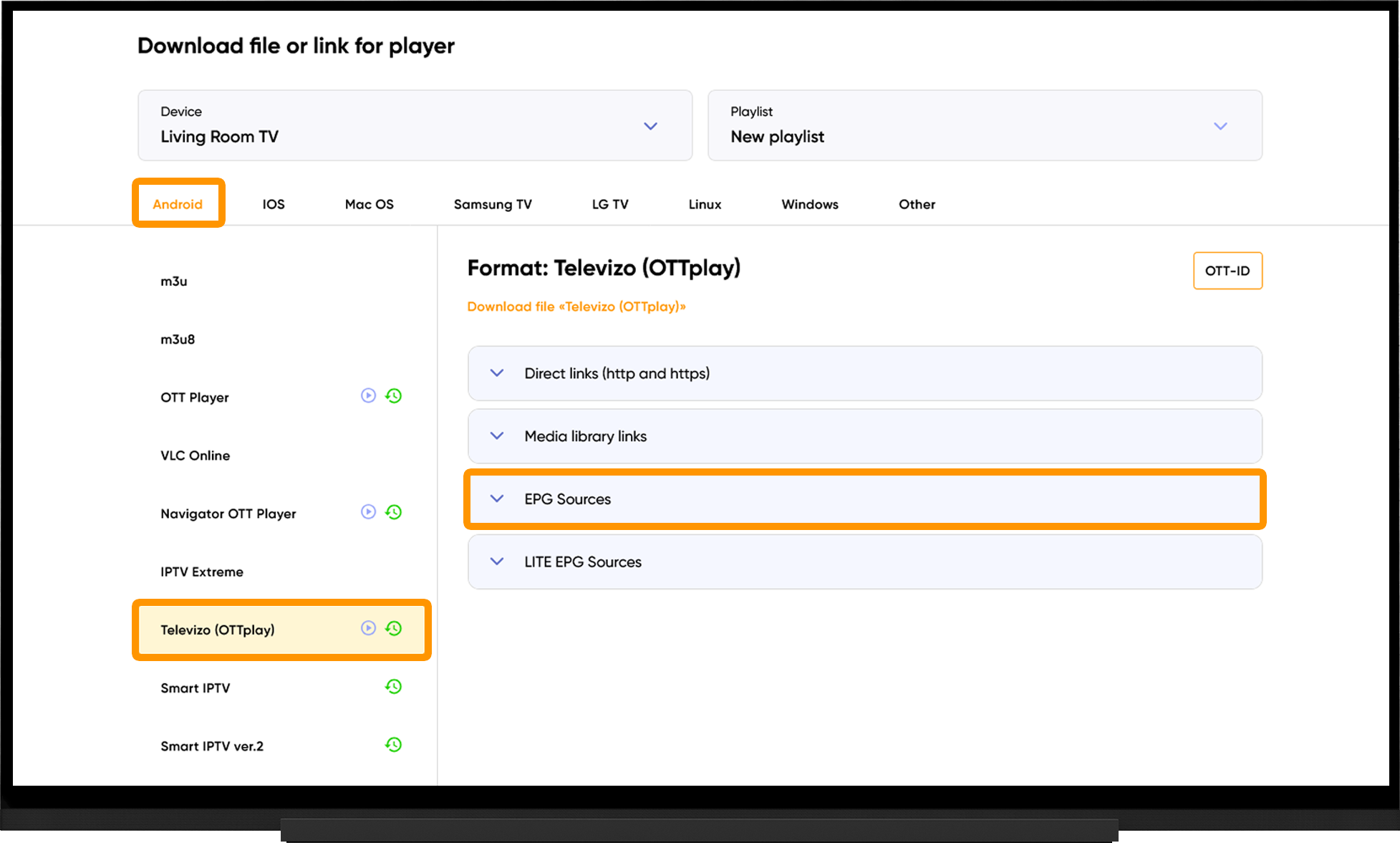
Media library
To set up the media library, open Settings and select "Playlists":
- Click the "+" button in the upper-right corner.
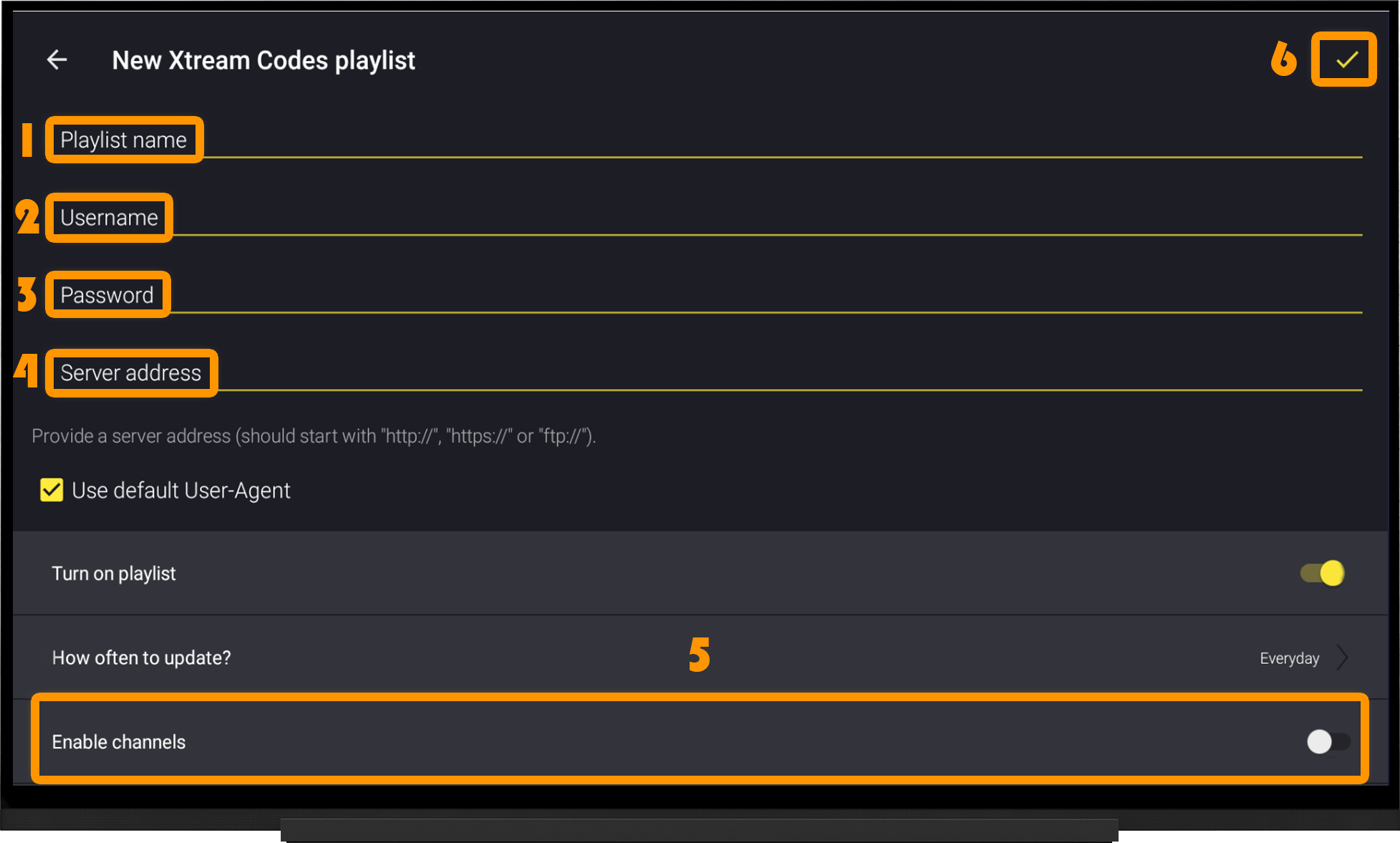
- Select "New Xtream Codes Playlist".
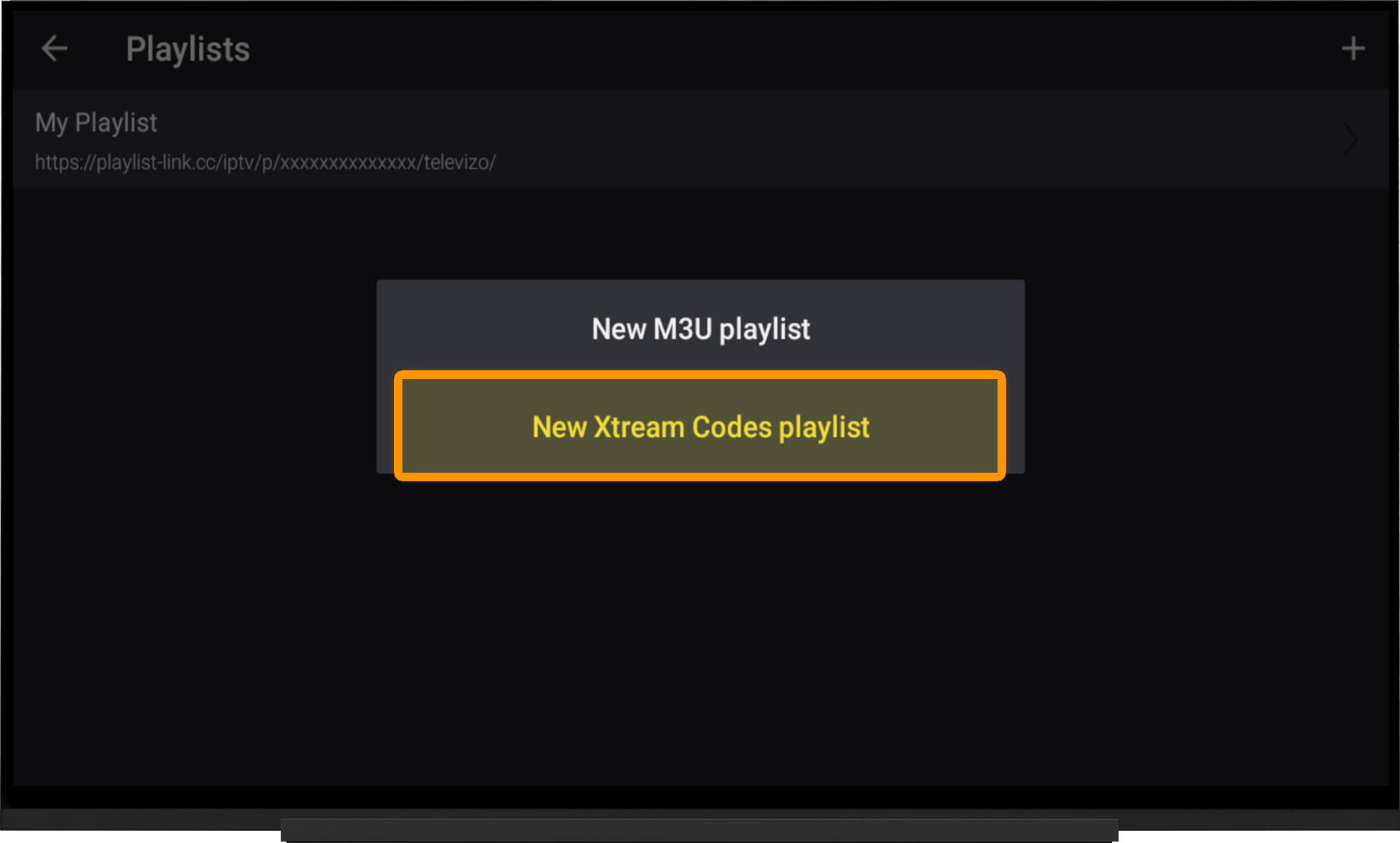
In the playlist settings:
- Enter any playlist name.
- Username - enter your OTT-ID.
- Password - enter your OTT-ID.
- Paste the media library link.
- Disable the "Enable Channels" option.
- Save the changes.
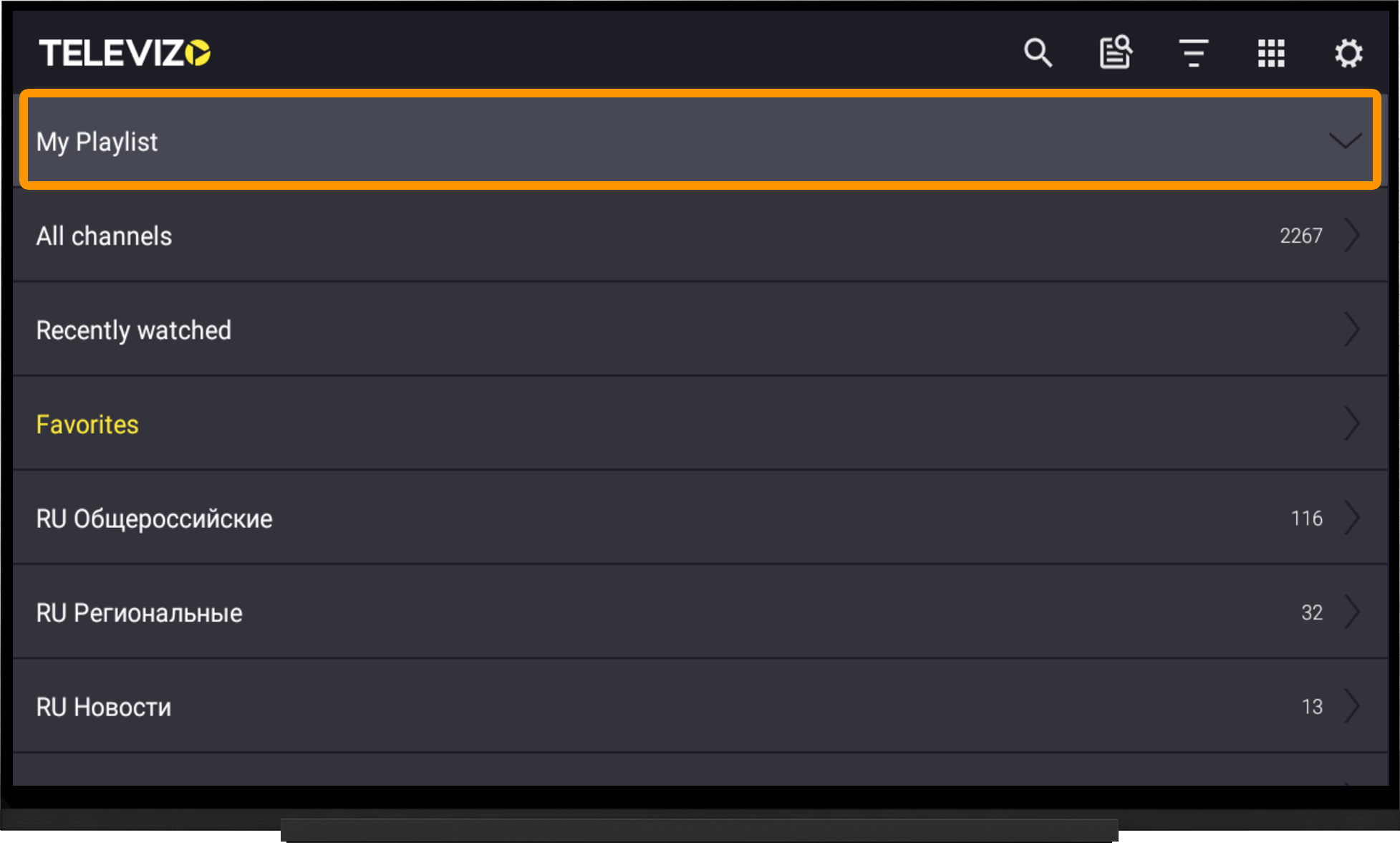
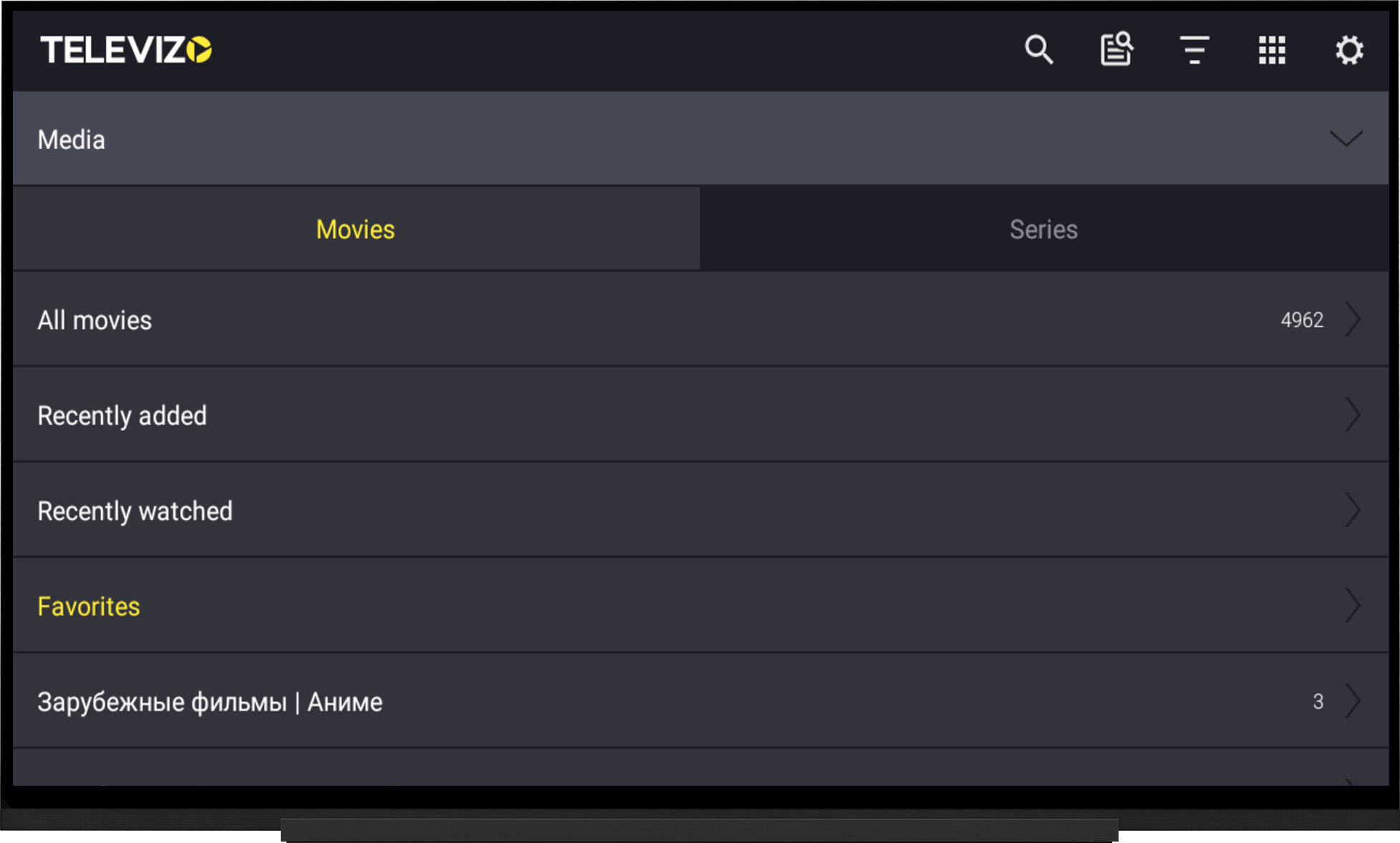
Return to the player's home screen and click the IPTV playlist you created earlier at the top of the screen to switch to the media library.
Note:
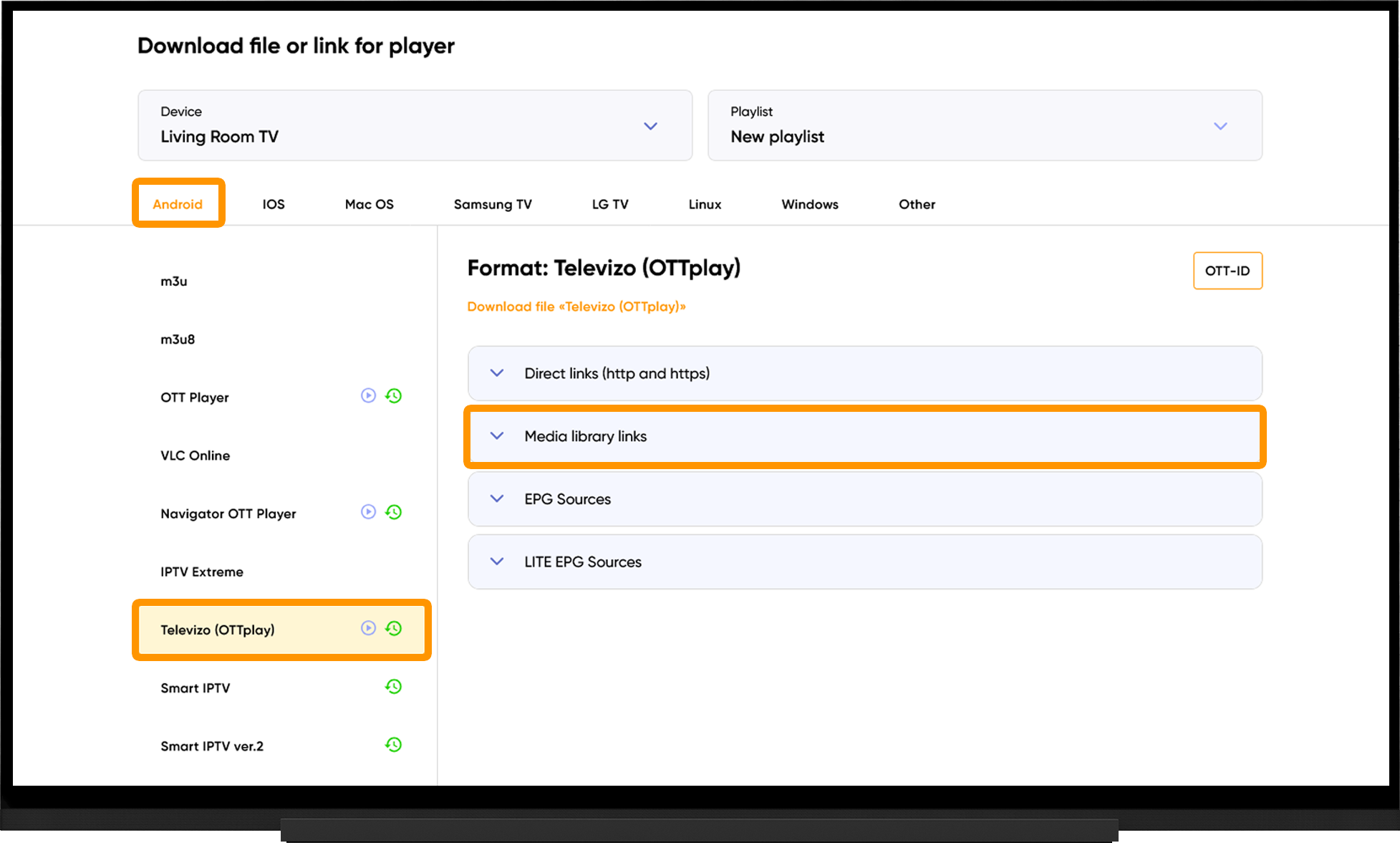
To obtain the media library link, username, and password, go to the My Devices section and click "Download" next to your device:
- Select Android.
- Select Televizo (OTTplay).
- Expand the "Media Library Links" section.
Frequently asked questions
No Sound:
- Go to Settings.
- Open Additional Settings.
- Select "Video & Audio Processing by Default."
- Change the decoding type (Software/Hardware).
- Restart the player.
Playlist Does Not Load:
- Verify that the playlist URL is correct. Pay attention to uppercase and lowercase characters when entering the link manually.
- Try different playlist link types (HTTP/HTTPS).
- Run the server selection test, switch to the recommended server, and restart the application after 10 minutes.
Video Buffering:
- Run the server selection test, switch to the recommended server, and restart the application after 10 minutes.
- Increase the network buffer size in the Additional Settings (available in the Premium version).